

Your graphics add a nice touch to my presentations and I recently used them for one of my all-hands meetings. Your toolbox adds professionalism to my slides. Instead of using standard clipart.
Claude Jones, Director of Engineer, @Walmartlabs, USA

Your graphics add a nice touch to my presentations and I recently used them for one of my all-hands meetings. Your toolbox adds professionalism to my slides. Instead of using standard clipart.
Claude Jones, Director of Engineer, @Walmartlabs, USA
I needed a fresh look at some of my slides. I've tried to find a way to create a paintbrush effect, to underline, accentuate, add some color and the handwritten markers were just the things. Very easy to use, easy to size, change the color. It was an affordable, perfect solution and I'm happy to recommend it.
Anonymous, US
The crisp, clean look of the graphics, and the fact that it allowed me to easily edit and change the colors to match the template was my main reason for purchasing them.
Brandie Jenkins, E-learning Developer, USA
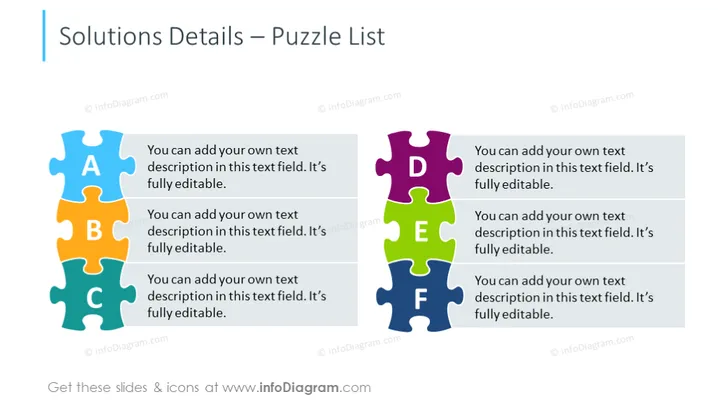
The PowerPoint slide titled "Solutions Details – Puzzle List" appears to represent a metaphor for how various pieces of a project or problem-solving scenario might fit together, with designated placeholders for descriptive text corresponding to each 'puzzle' piece, marked from A to F. Each puzzle piece represents a facet of a solution or detail in a list form, allowing the presenter to show how individual components can form a cohesive whole. This format highlights interdependence or connectivity among elements of a strategy, plan, or solution.
The visual composition of the slide is balanced and colorful, with the assorted hues drawing attention to each independent element while still signifying their potential to interlock. The use of puzzles as icons effectively conveys the concept of interconnectivity and problem-solving.



