Reviews
Your graphics add a nice touch to my presentations and I recently used them for one of my all-hands meetings. Your toolbox adds professionalism to my slides. Instead of using standard clipart.
I needed a fresh look at some of my slides. I've tried to find a way to create a paintbrush effect, to underline, accentuate, add some color and the handwritten markers were just the things. Very easy to use, easy to size, change the color. It was an affordable, perfect solution and I'm happy to recommend it.
The crisp, clean look of the graphics, and the fact that it allowed me to easily edit and change the colors to match the template was my main reason for purchasing them.
Description
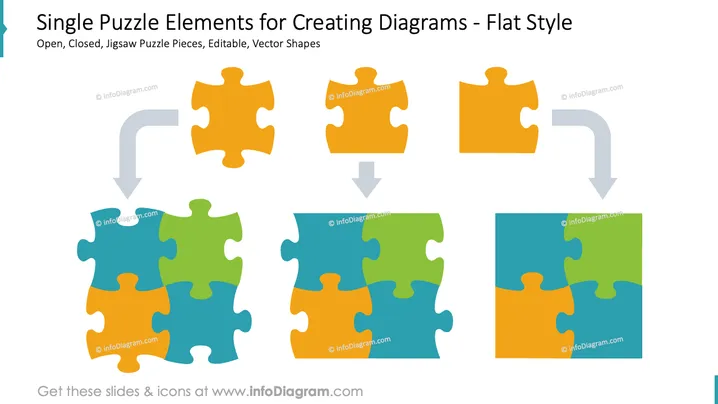
Single Puzzle Elements for Creating Diagrams - Flat Style
Slide Content
This slide depicts various jigsaw puzzle pieces in a flat design, illustrating open and closed states for creating diagrams. Open pieces stand alone, suggesting an incomplete connection or a part needed to be filled. Closed puzzle pieces are connected to each other, signifying unity or completed sections. These vector shapes allow for customized diagram creation, emphasizing how individual components fit into a larger framework or solve a specific problem.
Graphical Look
- The title of the slide is in a large, bold font at the top.
- Two rows of jigsaw puzzle pieces are displayed.
- The top row has three standalone puzzle pieces with curved arrows pointing downwards to the row beneath.
- The bottom row contains three sets of interlocking puzzle pieces, each corresponding to the piece above from the top row.
- The design is simple and uses a flat visual style.
- Colors of the puzzle pieces vary, with each set consisting of multiple bright colors like orange, blue, green, and yellow.
- There is a drop shadow effect behind each puzzle piece, giving a slight sense of depth.
The slide has a clean and modern appearance, with a clear visual metaphor for connecting ideas or components. The flat design style ensures the focus stays on the puzzle pieces without any distractions.
Use Cases
- Explaining the integration of different departments or functions in an organization.
- Showing the step-by-step process of problem-solving or product development.
- Demonstrating the synergy between various components of a project.
- Using as a visual aid in workshops to discuss teamwork, collaboration, and fitting pieces together to achieve a strategic fit or goal.
How to Edit
How to edit text & colors

How to expand / shorten diagram

How to Replace Icons in infoDiagram PPT


