Reviews
Sus gráficos añaden un toque agradable a mis presentaciones y recientemente los usé para una de mis reuniones generales. Su conjunto de herramientas añade profesionalismo a mis diapositivas. En lugar de usar imágenes prediseñadas estándar.
Necesitaba un aspecto fresco para algunas de mis diapositivas. Había intentado encontrar una forma de crear un efecto de pincel, de subrayar, acentuar, añadir algo de color y los marcadores escritos a mano fueron justo lo que necesitaba. Muy fácil de usar, fácil de ajustar el tamaño, cambiar el color. Fue una solución asequible y perfecta, y estoy feliz de recomendarla.
El aspecto nítido y limpio de los gráficos, y el hecho de que me permitiera editar y cambiar fácilmente los colores para que coincidieran con la plantilla fue mi principal razón para comprarlos.
Description
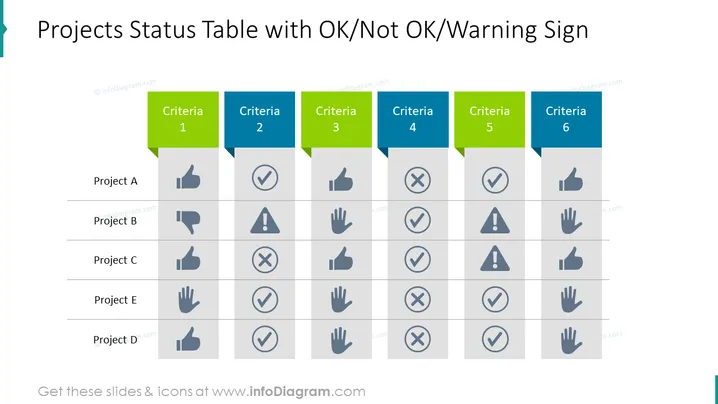
Projects Status Table with OK/Not OK/Warning Sign
Slide Content
The slide presents a matrix titled "Projects Status Table with OK/Not OK/Warning Sign," which is designed to assess multiple projects against six different criteria. Each project row (Project A, B, C, E, D) is evaluated with a thumbs-up (OK), an exclamation mark in a triangle (Warning), or a cross (Not OK) against each criterion. This visual coding provides a quick overview of the project statuses, with thumbs-up possibly indicating satisfactory performance, warning signs suggesting attention needed, and crosses potentially indicating unsatisfactory performance.
Graphical Look
- The title in bold, large font at the top of the slide.
- A rectangular table with six columns and five rows below the title.
- Table columns are alternately colored in blue and green, each labeled "Criteria" followed by a number from 1 to 6.
- Rows are labeled "Project A" through "Project E," with "Project D" being the last.
- Inside each cell, one of three icons are used: a thumbs-up sign, an exclamation mark in a triangle, or a cross.
- The icons are in a shade of gray, providing a visual contrast against the white background of the cells.
The overall look is clean and professional, with a straightforward table format that allows for easy comparison across projects and criteria. The color-coding and icons are designed to direct viewers' attention effectively towards quick assessments of project status.
Use Cases
- To provide an at-a-glance status update on multiple projects during team meetings or management reviews.
- For inclusion in project dashboard presentations to highlight areas that are on track, at risk, or require immediate attention.
- Within program management updates to communicate the health of various initiatives to stakeholders.
- As part of a project portfolio review, to facilitate decision-making about project prioritization, resource allocation, or intervention strategies.
How to Edit
How to edit text & colors

How to expand / shorten diagram

How to Replace Icons in infoDiagram PPT


