Reviews
Sus gráficos añaden un toque agradable a mis presentaciones y recientemente los usé para una de mis reuniones generales. Su conjunto de herramientas añade profesionalismo a mis diapositivas. En lugar de usar imágenes prediseñadas estándar.
Necesitaba un aspecto fresco para algunas de mis diapositivas. Había intentado encontrar una forma de crear un efecto de pincel, de subrayar, acentuar, añadir algo de color y los marcadores escritos a mano fueron justo lo que necesitaba. Muy fácil de usar, fácil de ajustar el tamaño, cambiar el color. Fue una solución asequible y perfecta, y estoy feliz de recomendarla.
El aspecto nítido y limpio de los gráficos, y el hecho de que me permitiera editar y cambiar fácilmente los colores para que coincidieran con la plantilla fue mi principal razón para comprarlos.
Description
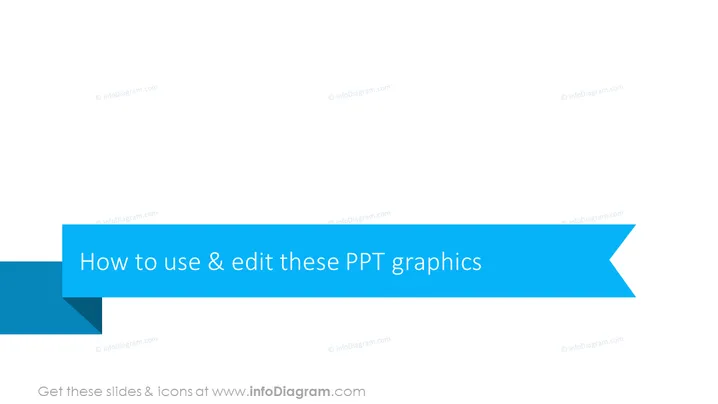
How to use & edit these PPT graphics
Slide Content
This PowerPoint slide seems to be an instructional title slide offering guidance on how to use and edit PowerPoint (PPT) graphic elements. It likely serves as a section header or introduction to further details on manipulating graphical content within presentation slides, such as resizing, changing colors, or editing text within graphic components. It prepares the viewer for a tutorial or a series of tips and tricks regarding efficient and effective slide customization.
Graphical Look
- The slide features a bold, blue arrow-shaped banner that fills the majority of the slide from the left side to the right edge, pointing rightward.
- The arrow banner's hue is a gradient of blue, showing a spectrum from lighter to darker blue from left to right.
- On the arrow banner, there is a white text that reads "How to use & edit these PPT graphics" in a large, bold, sans-serif font.
- There is a small shadow effect where the arrow banner folds, creating a sense of depth.
- The background of the slide is white, which allows the blue arrow banner to stand out prominently.
The overall look of the slide is modern and professional, with a simple color scheme that draws attention to the title text. The centerpiece of the design is the large directional arrow, which indicates forward movement and progression, suggesting that the viewer is about to embark on a learning journey.
Use Cases
- This slide might be used in a workshop or seminar teaching effective presentation design and slide editing techniques.
- It can serve as an introductory slide during corporate training sessions focused on improving employees' skills in creating compelling PowerPoint presentations.
- The slide could be utilized in a webinar or online course where participants are learning about advanced PowerPoint functions and best practices.
- It might also function as a section break in a comprehensive guide or instructional manual for PowerPoint users detailing graphic customization and manipulation.
How to Edit
How to edit text & colors

How to expand / shorten diagram

How to Replace Icons in infoDiagram PPT


