Reviews
Your graphics add a nice touch to my presentations and I recently used them for one of my all-hands meetings. Your toolbox adds professionalism to my slides. Instead of using standard clipart.
I needed a fresh look at some of my slides. I've tried to find a way to create a paintbrush effect, to underline, accentuate, add some color and the handwritten markers were just the things. Very easy to use, easy to size, change the color. It was an affordable, perfect solution and I'm happy to recommend it.
The crisp, clean look of the graphics, and the fact that it allowed me to easily edit and change the colors to match the template was my main reason for purchasing them.
Description
Editing Flat Icons & Shapes in PowerPoint
Slide Content
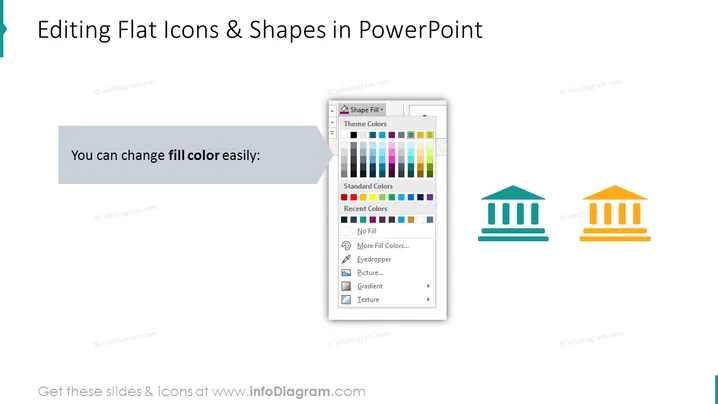
The slide is focused on demonstrating the ease of changing the fill color of flat icons and shapes within PowerPoint. It features a singular instructional text stating "You can change fill color easily:" which implies that the process is straightforward. Accompanying the text is a graphical representation of the PowerPoint interface showing a color selection tool, indicating the diverse color customization options available to users. Two icons, a bank and a building, are shown with color variations, further exemplifying the application of this feature.
Graphical Look
- The slide has a large title at the top in bold, dark text.
- A light blue decorative bracket initiates from the left edge.
- A gray text box contains the instructional text in white font with a drop shadow effect.
- A graphical representation of a color selection tool from PowerPoint is displayed, featuring theme colors, standard colors, and more.
- The right side of the slide exhibits two flat icons - a blue bank and an orange building with pillars - demonstrating the fill color change effect.
- The background of the slide is white, providing a stark contrast to the colorful elements.
The slide sports a clean and modern look with a balanced mixture of text, colors, and icons. The use of contrasting colors and flat design enhances readability and facilitates understanding of the content.
Use Cases
- To instruct users on the basics of customizing slide content in a PowerPoint training session.
- During a design-focused meeting to demonstrate how branding colors can be applied to presentation elements.
- In a marketing strategy presentation to show how visual elements can be tailored to match campaign themes.
- As part of a template customization guide for a team to maintain consistency in corporate presentations.
How to Edit
How to edit text & colors

How to expand / shorten diagram

How to Replace Icons in infoDiagram PPT


