Reviews
Your graphics add a nice touch to my presentations and I recently used them for one of my all-hands meetings. Your toolbox adds professionalism to my slides. Instead of using standard clipart.
I needed a fresh look at some of my slides. I've tried to find a way to create a paintbrush effect, to underline, accentuate, add some color and the handwritten markers were just the things. Very easy to use, easy to size, change the color. It was an affordable, perfect solution and I'm happy to recommend it.
The crisp, clean look of the graphics, and the fact that it allowed me to easily edit and change the colors to match the template was my main reason for purchasing them.
Description
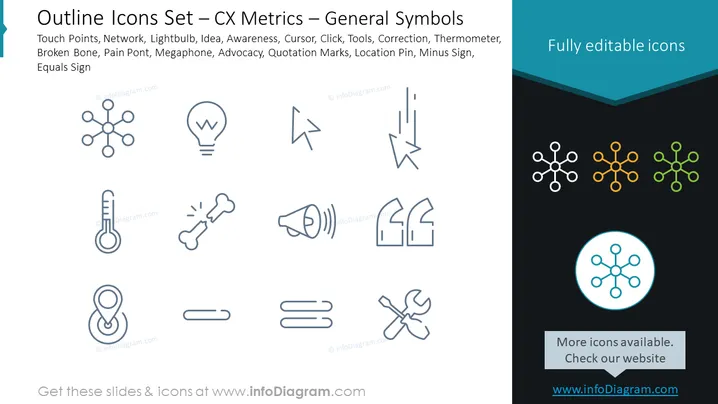
Outline Icons Set — CX Metrics — General Symbols
Slide Content
The slide presents an "Outline Icons Set" tailored for "CX Metrics — General Symbols" and lists various icons such as Touch Points (indicative of customer interaction points), Network (depicting connectivity or relationships), Lightbulb (symbolizing ideas or innovation), Idea (also representing creativity or a new concept), Awareness, Cursor, Click, Tools (implying repair or construction), Correction, Thermometer (denoting measurement), Broken Bone (possibly highlighting damage or fragility), Pain Point (referring to a problem area or challenge), Megaphone (symbolizing announcement or promotion), Advocacy, Quotation Marks (implying speech or citation), Location Pin (marking a position or place on a map), Minus Sign, and Equals Sign (both relating to mathematical or logical operations).
Graphical Look
- The slide background is a gradient from light to dark teal at the bottom.
- A series of line icons are neatly organized in rows and columns against the light part of the gradient background.
- The icons are rendered in a consistent outline style, emphasizing simplicity and clarity.
- On the right, three network icons are colored differently (white, orange, and lime green) against a darker background, showcasing color variation possibilities.
- One larger network icon is highlighted at the bottom right with a blue circle around it, drawing attention to it specifically.
- A text box at the bottom right corner provides a message indicating additional icons and a website link.
- The overall slide design features a chevron cutout at the top right corner, adding a unique geometric design element.
- A larger chevron-shaped overlay in dark blue contains the title text in white, contrasting with the main slide area.
The slide has a sleek, professional design with a modern touch due to the geometric shapes and clean lines. The icon set is displayed with simplicity and uniformity, allowing easy interpretation and selection of any icon for different ### Use Cases
- To illustrate various concepts in customer experience strategies during a business presentation.
- As visual aids when discussing digital engagement metrics in a marketing meeting.
- For enhancing training materials that explain customer service processes and key touch points.
- To add visual interest to reports or infographics that require symbolizing abstract concepts like ideas, communication, and feedback.
How to Edit
How to edit text & colors

How to expand / shorten diagram

How to Replace Icons in infoDiagram PPT


