Reviews
Your slides are my 'secret sauce' when it comes to visualising my ideas to clients. I'm saving so much time.
InfoDiagram has been a wonderful resource since I found the product site a few years ago.
Your slides often generate good comments and ideas from my team that improve the final slides.
Description
Outline Icons Set
Slide Content
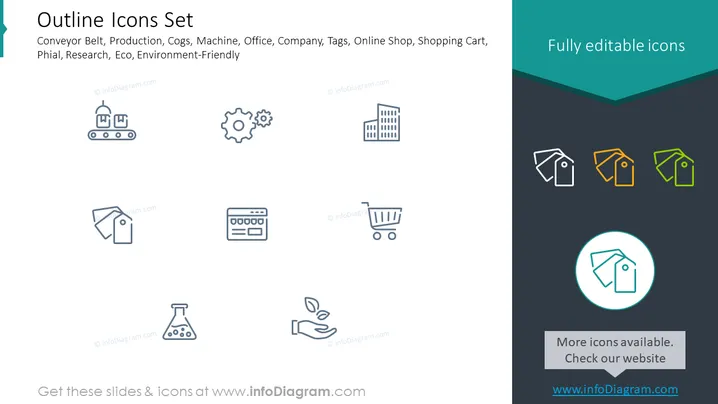
The slide is titled "Outline Icons Set" and it suggests a collection of icons that represent various concepts. The icons include a conveyor belt signifying automation or manufacturing, cogs for machinery or processes, a building implying an office or company, labels for categorization or tagging, a shopping cart for retail or e-commerce, a credit card for payment or financial transactions, a browser window representing online activities or web services, and a seedling in a hand symbolizing eco-friendliness or environmental care.
Graphical Look
- The slide background is divided diagonally with light grey on the left and a darker shade on the right.
- To the left, eight light blue outline icons are neatly arranged in two rows and four columns.
- Each icon is accompanied by a small descriptive text underneath, aligned to the center.
- To the right, there is a larger teal section with a text label "Fully editable icons" in white font.
- Within the teal section, three differently colored versions of a tag icon are displayed: one in white outline, one in orange fill, and one in green fill.
- Below the teal section, there is a circular graphic with a larger version of the tag icon in teal outline against a white background.
- There's a rectangular text box below the circle bearing the message "More icons available. Check our website" with a URL.
- The graphic design includes a balance between text and visual elements with a clean and professional appearance. The overall look of the slide is sleek and modern, utilizing a contrasting color scheme to highlight different sections and emphasize the versatility of the icons.
Use Cases
- In presentations introducing a new technology platform, using the relevant icons to visualize different features or components.
- For marketing materials outlining different services or products offered by a company, with each icon representing a distinct category.
- Within training materials to guide employees through different processes or departments, using icons for clear, visual representation.
- During web development meetings to discuss user interface elements, selecting icons that enhance user experience and navigation.
How to Edit
How to edit text & colors

How to expand / shorten diagram

How to Replace Icons in infoDiagram PPT


