Reviews
Your graphics add a nice touch to my presentations and I recently used them for one of my all-hands meetings. Your toolbox adds professionalism to my slides. Instead of using standard clipart.
I needed a fresh look at some of my slides. I've tried to find a way to create a paintbrush effect, to underline, accentuate, add some color and the handwritten markers were just the things. Very easy to use, easy to size, change the color. It was an affordable, perfect solution and I'm happy to recommend it.
The crisp, clean look of the graphics, and the fact that it allowed me to easily edit and change the colors to match the template was my main reason for purchasing them.
Description
Your sample text here
Slide Content
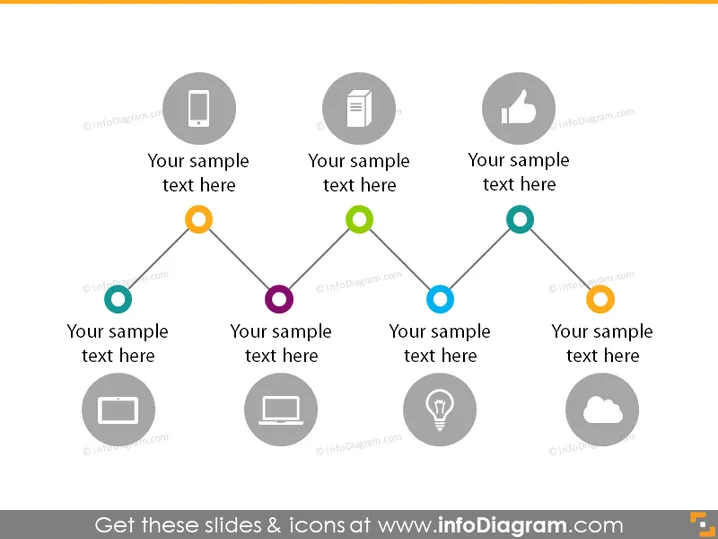
The PowerPoint slide features a timeline or process flow with six steps. Each step is represented by a circular icon with an accompanying text box for descriptions. This kind of slide is typically used to depict sequences, timelines, or the progression of steps in a process, where each step might represent a different stage, task, or milestone in a project or strategy.
Graphical Look
- The slide's background is white, which gives a clean and minimalist feel.
- Six circular, shaded icons are evenly distributed across the slide, aligned in a horizontal row.
- Each icon contains a unique symbol, such as a mobile phone, a document, a thumbs-up, etc., which is presumably related to the topic of the slide.
- The icons are connected by a line that zigzags horizontally across the slide, suggesting a step-by-step progression.
- Dots of different colors (orange, green, blue, etc.) are placed on the connecting line at the point they intersect with the circles, possibly indicating the sequential order or different phases.
- Below each icon is a placeholder text "Your sample text here," indicating where descriptions or titles for each step should be added.
- The icons and text are grey, with a contrasting drop shadow that gives a three-dimensional effect.
The overall look of the slide is modern and professional. Its design is simple yet effective in conveying a process or timeline in an easy-to-follow visual format.
Use Cases
- Illustrating the phases of a business project from initiation to completion.
- Outlining the steps involved in a new product development lifecycle.
- Presenting the sequence of events in a company's growth or expansion strategy.
- Demonstrating key stages in a customer journey or experience map.
How to Edit
How to edit text & colors

How to expand / shorten diagram

How to Replace Icons in infoDiagram PPT


