Reviews
Your graphics add a nice touch to my presentations and I recently used them for one of my all-hands meetings. Your toolbox adds professionalism to my slides. Instead of using standard clipart.
I needed a fresh look at some of my slides. I've tried to find a way to create a paintbrush effect, to underline, accentuate, add some color and the handwritten markers were just the things. Very easy to use, easy to size, change the color. It was an affordable, perfect solution and I'm happy to recommend it.
The crisp, clean look of the graphics, and the fact that it allowed me to easily edit and change the colors to match the template was my main reason for purchasing them.
Description
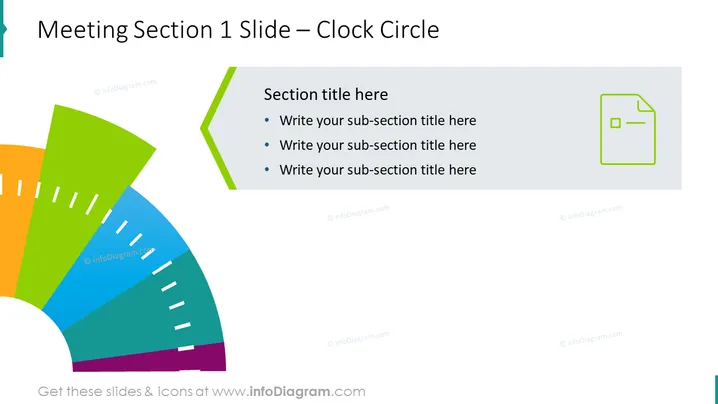
Meeting Section 1 Slide – Clock Circle
Slide Content
The PowerPoint slide titled "Meeting Section 1 Slide – Clock Circle" seems to be designed for breaking down a session or agenda into parts. The bullet points are placeholders for subsection titles, suggesting a detailed discussion or presentation of multiple topics within a section. Each bullet point likely represents a significant point or topic to be covered, allowing the presenter to organize their content effectively.
Graphical Look
- The slide background is white, providing a clean and neutral canvas for the content.
- In the top left, there is the slide title in a large, bold, teal font.
- A colorful, segmented, semi-circular graphic is positioned on the left side, resembling a stylized clock or pie chart with sections in yellow, green, blue, and purple.
- Each segment of the semi-circular graphic has dashed white lines suggesting subdivisions.
- To the right of the segmented graphic, there is a grey content box with a green left border that includes three bullet points for text placeholders.
- In the upper right corner, there is a square icon outlined in green, featuring a simple representation of a document with a folded corner and a dash line, possibly indicating a report or file.
The overall look of the slide is modern and professional, with a colorful graphical element to draw attention to the different subsections of a meeting or presentation topic.
Use Cases
- To outline the agenda for different sections of a meeting or conference, providing a visual cue for each topic.
- In a training session to indicate various modules or timeframes that attendees will go through.
- During a workshop to visually represent different activities or discussion points scheduled.
- As a summary slide in a report or proposal to highlight the key sections or stages of a project plan.
How to Edit
How to edit text & colors

How to expand / shorten diagram

How to Replace Icons in infoDiagram PPT


