

Your graphics add a nice touch to my presentations and I recently used them for one of my all-hands meetings. Your toolbox adds professionalism to my slides. Instead of using standard clipart.
Claude Jones, Director of Engineer, @Walmartlabs, USA

Your graphics add a nice touch to my presentations and I recently used them for one of my all-hands meetings. Your toolbox adds professionalism to my slides. Instead of using standard clipart.
Claude Jones, Director of Engineer, @Walmartlabs, USA
I needed a fresh look at some of my slides. I've tried to find a way to create a paintbrush effect, to underline, accentuate, add some color and the handwritten markers were just the things. Very easy to use, easy to size, change the color. It was an affordable, perfect solution and I'm happy to recommend it.
Anonymous, US
The crisp, clean look of the graphics, and the fact that it allowed me to easily edit and change the colors to match the template was my main reason for purchasing them.
Brandie Jenkins, E-learning Developer, USA
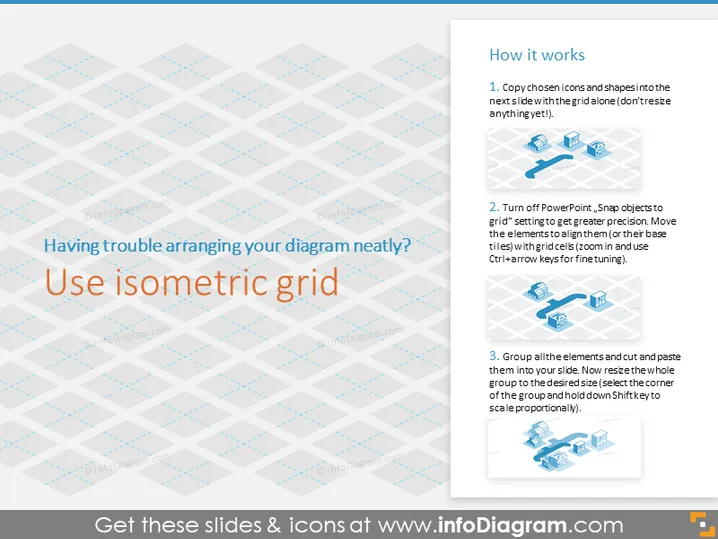
The PowerPoint slide is designed to provide guidance on utilizing an isometric grid to arrange diagrams neatly. It proposes a three-step process for achieving precision and neatness in diagram arrangements. The first step recommends copying icons and shapes onto a new slide with a grid, emphasizing not resizing them initially. Copying elements allows for consistent alignment. Second, you should disable PowerPoint's "Snap objects to grid" feature for refined control and use grid circles to align elements, with the mention of zooming in and using Ctrl+arrow keys for exact positioning. This offers precise placement of components on the grid. Lastly, the third step instructs grouping all elements and pasting them into the desired slide with subsequent resizing, which maintains the proportions while adjusting size. Grouping ensures coherent movement and resizing of the diagram components.
The overall look of the slide is clean and professional. The use of an isometric grid as a background theme is visually appealing and directly supports the message conveyed in the text.



