

Your graphics add a nice touch to my presentations and I recently used them for one of my all-hands meetings. Your toolbox adds professionalism to my slides. Instead of using standard clipart.
Claude Jones, Director of Engineer, @Walmartlabs, USA

Your graphics add a nice touch to my presentations and I recently used them for one of my all-hands meetings. Your toolbox adds professionalism to my slides. Instead of using standard clipart.
Claude Jones, Director of Engineer, @Walmartlabs, USA
I needed a fresh look at some of my slides. I've tried to find a way to create a paintbrush effect, to underline, accentuate, add some color and the handwritten markers were just the things. Very easy to use, easy to size, change the color. It was an affordable, perfect solution and I'm happy to recommend it.
Anonymous, US
The crisp, clean look of the graphics, and the fact that it allowed me to easily edit and change the colors to match the template was my main reason for purchasing them.
Brandie Jenkins, E-learning Developer, USA
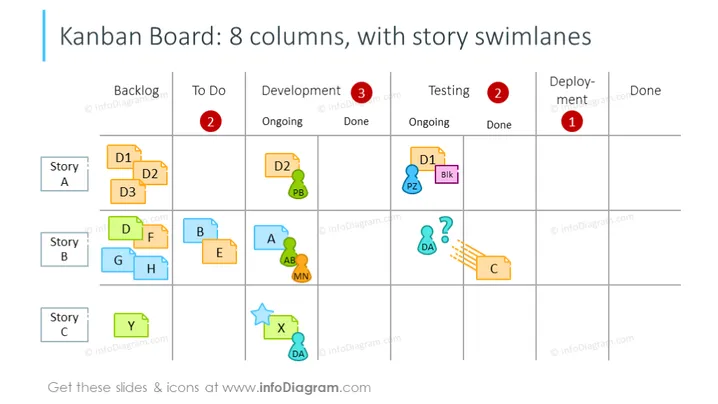
The slide presents a Kanban board with 8 columns titled Backlog, To Do, Development (further divided into Ongoing and Done), Testing (divided into Ongoing and Done), Deployment, and Done. Each column contains alphanumeric codes representing tasks, clustered under "Story A," "Story B," and "Story C" swimlanes, signifying different project components or user stories. The slide illustrates how tasks move from left to right, from Backlog to Done, indicating progress by their position.
The graphical look is clean and color-coordinated, using a mix of primary and secondary colors to differentiate tasks and icons. It is a clear visual representation of task progression and project organization.



