Reviews
Your graphics add a nice touch to my presentations and I recently used them for one of my all-hands meetings. Your toolbox adds professionalism to my slides. Instead of using standard clipart.
I needed a fresh look at some of my slides. I've tried to find a way to create a paintbrush effect, to underline, accentuate, add some color and the handwritten markers were just the things. Very easy to use, easy to size, change the color. It was an affordable, perfect solution and I'm happy to recommend it.
The crisp, clean look of the graphics, and the fact that it allowed me to easily edit and change the colors to match the template was my main reason for purchasing them.
Description
January — with Place for Notes
Slide Content
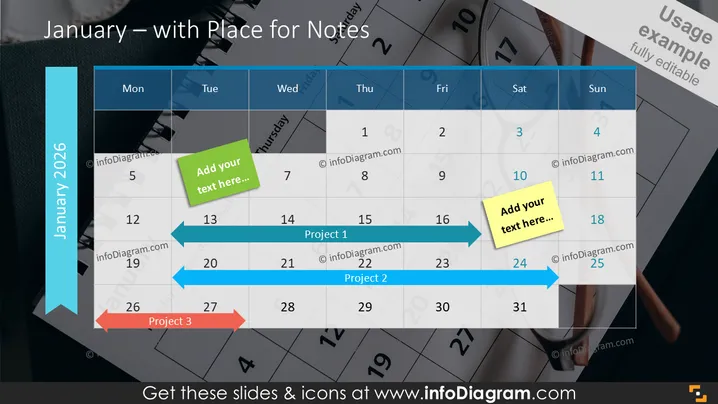
The PowerPoint slide is a calendar template for the month of January 2026 , designed to allow for personalized notes and project tracking. It contains a grid with the days of the week and incremental dates, with certain areas highlighted to mark different projects. There are placeholders to "Add your text here," indicative of the customizable nature of the template. Each block for daily notes allows users to record specific information, serving as an organizational tool for scheduling events, deadlines, or important reminders.
Graphical Look
- The slide background features a partially transparent view of a physical calendar, hinting at time management and scheduling themes.
- The months and dates are presented in a clear grid format, deploying various shades of blue for visual segmentation and emphasis.
- Three colored arrow shapes stretch across multiple dates, signifying project durations, with textual labels such as "Project 1", "Project 2", and "Project 3".
- Two 'sticky note' graphics serve as visual cues for places to insert personal text, notes, or comments.
- A prominent vertical ribbon on the left side of the slide displays the year "January 2025" in a large white font, creating a clear focus on the time period being represented.
The overall look of the slide is sleek and professional, with a cohesive color scheme and well-organized visual elements that facilitate easy navigation and comprehension.
Use Cases
- To plan and present project timelines and deadlines in a business meeting.
- For a personal agenda, to keep track of important dates and tasks in a visually engaging way.
- As an editorial calendar for content creators and marketers to outline their publication schedule.
- In an educational setting, for teachers to draw attention to key dates, exam schedules, and deadlines for classroom management.
How to Edit
How to edit text & colors

How to expand / shorten diagram

How to Replace Icons in infoDiagram PPT


