Reviews
Your graphics add a nice touch to my presentations and I recently used them for one of my all-hands meetings. Your toolbox adds professionalism to my slides. Instead of using standard clipart.
I needed a fresh look at some of my slides. I've tried to find a way to create a paintbrush effect, to underline, accentuate, add some color and the handwritten markers were just the things. Very easy to use, easy to size, change the color. It was an affordable, perfect solution and I'm happy to recommend it.
The crisp, clean look of the graphics, and the fact that it allowed me to easily edit and change the colors to match the template was my main reason for purchasing them.
Description
Slide Title
The image does not contain a clear slide title to transcribe.
Slide Content
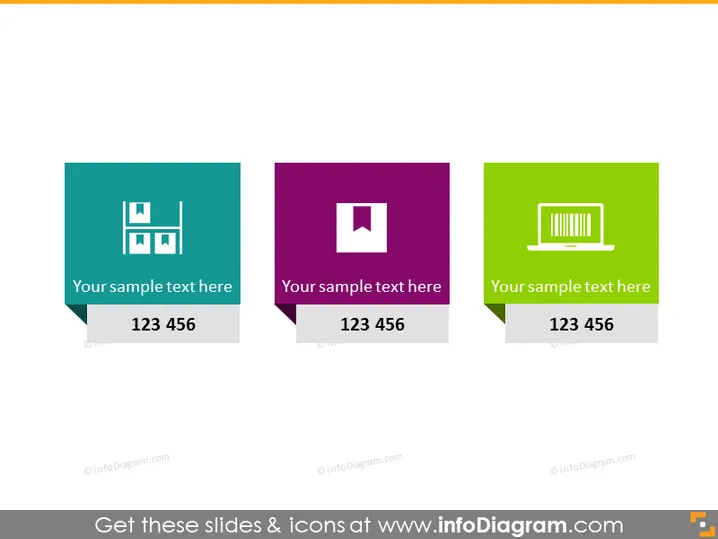
The PowerPoint slide appears to showcase three distinct elements, each in separate colored shapes, suggesting a segmentation of information or categorization. Each shape contains an icon, a placeholder text "Your sample text here," and a numerical sequence "123 456," which could indicate a step or a statistic relevant to the icon's topic. The icons represent different concepts: the first icon might be indicative of imagery or photos, the second one suggests a theme of central focus or a feature spotlight, and the third appears to represent data or analytics.
Graphical Look
- Three colored rectangular shapes with a folded corner design appear side by side, each in a different color - teal, purple, and green.
- Each rectangle contains a white icon on its upper half: the left one shows four squares, the middle a square within a square, and the right a bar code.
- Below the icons, there is space for text, which is currently occupied by placeholder text "Your sample text here" in a white sans-serif font.
- At the bottom of each shape is a darker shade ribbon or tag element that extends from the rectangle, featuring a number sequence "123 456" in a large white font.
The overall look of the slide is modern and minimalist with a clean divide between each section. The cohesive design elements and color coding make it easy to distinguish between the categories presented.
Use Cases
- Highlighting three key areas of focus or services in a company introduction presentation.
- Showcasing different stages or metrics in a project report.
- Comparing products, features, or packages in a sales or marketing presentation.
- Breaking down core components of a strategy or plan in a business pitch or proposal.
How to Edit
How to edit text & colors

How to expand / shorten diagram

How to Replace Icons in infoDiagram PPT


