Reviews
Your graphics add a nice touch to my presentations and I recently used them for one of my all-hands meetings. Your toolbox adds professionalism to my slides. Instead of using standard clipart.
I needed a fresh look at some of my slides. I've tried to find a way to create a paintbrush effect, to underline, accentuate, add some color and the handwritten markers were just the things. Very easy to use, easy to size, change the color. It was an affordable, perfect solution and I'm happy to recommend it.
The crisp, clean look of the graphics, and the fact that it allowed me to easily edit and change the colors to match the template was my main reason for purchasing them.
Description
Icons: Calendar Pins & Flags
Slide Content
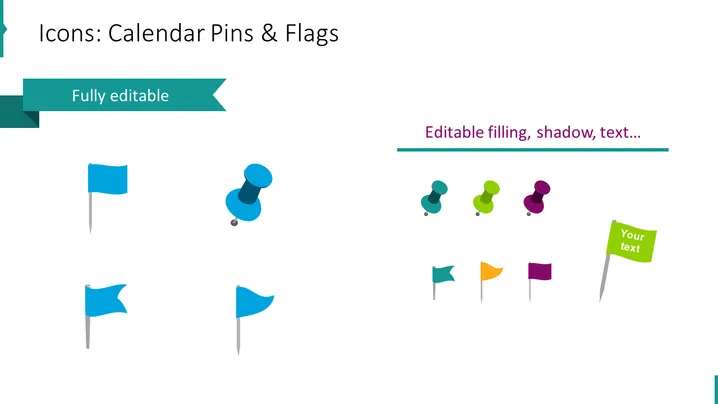
The PowerPoint slide titled "Icons: Calendar Pins & Flags" presents a collection of customizable icons that are commonly used to represent markers for events or important points in calendars or maps. The slide emphasizes that these icons are "Fully editable," indicating that users can modify aspects such as color and text. The icons displayed include different styles of pins and flags, suggesting variation and adaptability to different presentation needs. The blue flag icons show variety in design, depicting various waving styles, and the pushpin icons in different sizes and colors illustrate versatility.
Graphical Look
- The slide has a clean white background.
- The slide title "Icons: Calendar Pins & Flags" is in a large, dark font at the top left.
- There are two text boxes, one on the top left beneath the title, which reads "Fully editable," and another on the top right that says "Editable filling, shadow, text..."
- A total of nine icons are displayed: five flag icons on the left and four pushpin icons on the right.
- The icons are arranged in an informal grid pattern spread across the slide.
- One of the flag icons on the far right includes a text box with the phrase "Your text," demonstrating the editable nature of these icons.
- Colors of the icons vary, showing examples in blue, green, yellow, orange, and purple.
- The icons feature soft shadows, adding depth and a subtle 3D effect.
The overall look of the slide is professional and minimalistic, designed to showcase the editable icons clearly and attractively. The choice of colors and shadows gives the icons a modern and engaging appearance.
Use Cases
- In a project planning presentation to mark key milestones or deadlines on a timeline.
- Within a corporate strategy deck to highlight important dates or events.
- For a marketing presentation to show promotional campaign dates or release schedules of products.
- As part of an educational syllabus outline indicating assignment due dates or exam periods.
How to Edit
How to edit text & colors

How to expand / shorten diagram

How to Replace Icons in infoDiagram PPT


