Reviews
Your graphics add a nice touch to my presentations and I recently used them for one of my all-hands meetings. Your toolbox adds professionalism to my slides. Instead of using standard clipart.
I needed a fresh look at some of my slides. I've tried to find a way to create a paintbrush effect, to underline, accentuate, add some color and the handwritten markers were just the things. Very easy to use, easy to size, change the color. It was an affordable, perfect solution and I'm happy to recommend it.
The crisp, clean look of the graphics, and the fact that it allowed me to easily edit and change the colors to match the template was my main reason for purchasing them.
Description
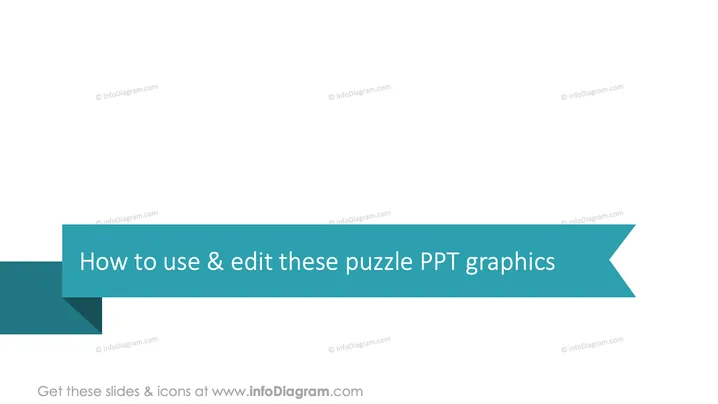
How to use & edit these puzzle PPT graphics
Slide Content
The PowerPoint slide's title suggests it is an instructional resource on utilizing and modifying puzzle graphics within PowerPoint presentations. The content most likely expands on techniques for editing such graphics, applying them effectively in various presentation scenarios, and altering their design to fit specific themes or concepts.
Graphical Look
- The slide features a title placed inside a ribbon banner graphic that is two-toned in various shades of teal.
- The ribbon banner displays a folded effect, creating a three-dimensional appearance.
- The text of the title uses a bold and readable sans-serif typeface with white color, providing good contrast against the darker background.
- The slide's background is plain white, except for the areas covered by the banner.
The overall slide design is modern and sleek, utilizing a minimalistic color palette centered around teal hues. The banner graphic adds a touch of depth and focus to the slide's title.
Use Cases
- Introducing a new section in a business presentation that involves problem-solving or collaborative topics.
- Training employees on how to customize PowerPoint templates for company-related presentations.
- Demonstrating ways of visualizing complex processes or systems that fit together like a puzzle.
- Engaging participants during workshops or educational sessions by showing how to work with interactive presentation elements.
How to Edit
How to edit text & colors

How to expand / shorten diagram

How to Replace Icons in infoDiagram PPT


