Reviews
Your graphics add a nice touch to my presentations and I recently used them for one of my all-hands meetings. Your toolbox adds professionalism to my slides. Instead of using standard clipart.
I needed a fresh look at some of my slides. I've tried to find a way to create a paintbrush effect, to underline, accentuate, add some color and the handwritten markers were just the things. Very easy to use, easy to size, change the color. It was an affordable, perfect solution and I'm happy to recommend it.
The crisp, clean look of the graphics, and the fact that it allowed me to easily edit and change the colors to match the template was my main reason for purchasing them.
Description
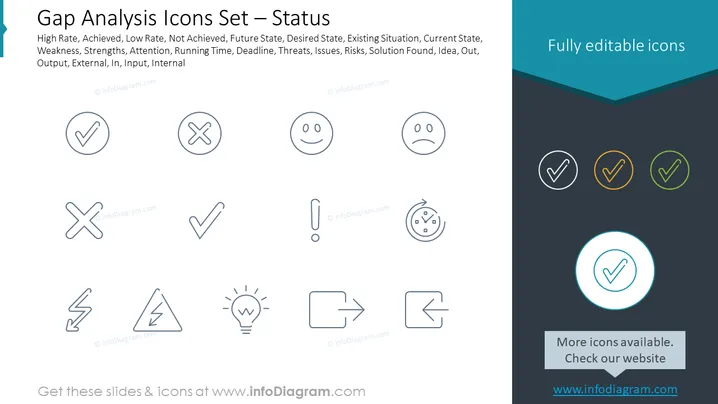
Gap Analysis Icons Set — Status
Slide Content
The PowerPoint slide titled "Gap Analysis Icons Set — Status" features a collection of icons representing various elements related to gap analysis such as "High Rate," "Achieved," "Low Rate," "Not Achieved," and other terms including "Future State," "Desired State," "Existing Situation," "Strengths," "Weakness," and concepts like "Attention," "Deadline," "Threats," "Issues," "Risks," and "Solution Found." Each term beside an icon suggests how that symbol might be used to visually represent the corresponding concept in a gap analysis context, helping to communicate status assessments quickly and effectively.
Graphical Look
- The slide background is white with a dark teal header and footer bar.
- The title "Gap Analysis Icons Set — Status" is prominently displayed in black text within the teal header bar.
- Below the title, there's a line of smaller text in a lighter grey, listing various analysis concepts.
- In the main area of the slide, there are three rows of icons, each set against a subtle circular grey outline.
- Icons are simple line drawings representing checks, crosses, faces with different expressions, an exclamation point, a timer, a lightning bolt, a warning sign, a light bulb, and directional arrows.
- The bottom icons in the third row are distinguished by colors - white, grey, yellow, and green with matching circular outlines.
- The third row rightmost icon is highlighted by a larger, brighter teal circle with a white checkmark inside it.
- Underneath the last icon, there's a small grey rectangle with the text "More icons available. Check our website" and a URL beneath it.
The slide carries a very minimalistic aesthetic with flat design icons, using color highlights selectively to draw attention to specific elements. The clean lines and organized layout give the slide a professional and modern look.
Use Cases
- In business presentations to visually represent the progress status of different projects, initiatives, or performance metrics.
- During strategic planning sessions to illustrate areas of strengths, weaknesses, opportunities, and threats (SWOT analysis).
- In performance review meetings to quickly convey achievements, targets met, or areas that require improvement.
- As visual aids in training materials to explain gap analysis concepts to a team or new employees.
How to Edit
How to edit text & colors

How to expand / shorten diagram

How to Replace Icons in infoDiagram PPT


