

Your graphics add a nice touch to my presentations and I recently used them for one of my all-hands meetings. Your toolbox adds professionalism to my slides. Instead of using standard clipart.
Claude Jones, Director of Engineer, @Walmartlabs, USA

Your graphics add a nice touch to my presentations and I recently used them for one of my all-hands meetings. Your toolbox adds professionalism to my slides. Instead of using standard clipart.
Claude Jones, Director of Engineer, @Walmartlabs, USA
I needed a fresh look at some of my slides. I've tried to find a way to create a paintbrush effect, to underline, accentuate, add some color and the handwritten markers were just the things. Very easy to use, easy to size, change the color. It was an affordable, perfect solution and I'm happy to recommend it.
Anonymous, US
The crisp, clean look of the graphics, and the fact that it allowed me to easily edit and change the colors to match the template was my main reason for purchasing them.
Brandie Jenkins, E-learning Developer, USA
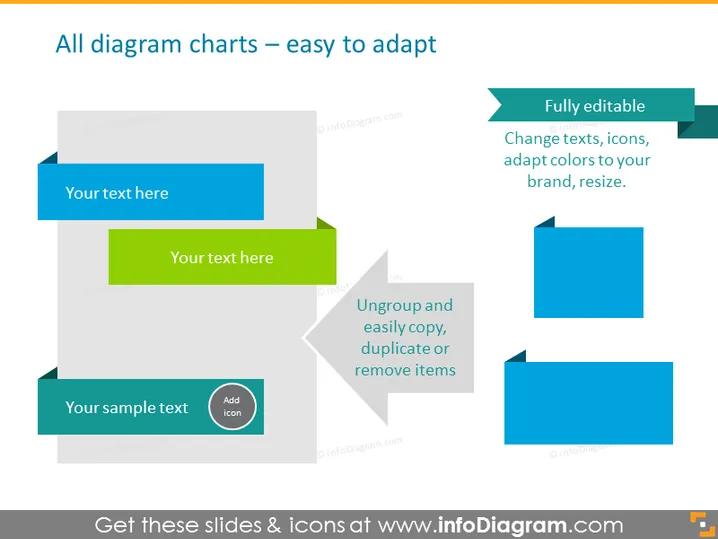
The PowerPoint slide titled 'All diagram charts – easy to adapt' is showcasing customizable diagram charts that are designed to be flexible for various presentation needs. The three main features are: 'Fully editable', which implies text, icons, colors, and size can be altered; 'Ungroup and easily copy, duplicate or remove items', suggesting that the diagram's individual components can be independently manipulated; and placeholders for text labeled as 'Your text here' and 'Your sample text', indicating where users can input their own content. Each of these features emphasizes the adaptability and user-friendly nature of the diagram templates for a variety of uses.
The slide is strategically designed for clarity and ease of use, with a simple color palette that emphasizes the content over the design. The colored strips serve as both titles and visual guides, leading the viewer's eyes through each feature of the diagrams provided.



