

Your graphics add a nice touch to my presentations and I recently used them for one of my all-hands meetings. Your toolbox adds professionalism to my slides. Instead of using standard clipart.
Claude Jones, Director of Engineer, @Walmartlabs, USA

Your graphics add a nice touch to my presentations and I recently used them for one of my all-hands meetings. Your toolbox adds professionalism to my slides. Instead of using standard clipart.
Claude Jones, Director of Engineer, @Walmartlabs, USA
I needed a fresh look at some of my slides. I've tried to find a way to create a paintbrush effect, to underline, accentuate, add some color and the handwritten markers were just the things. Very easy to use, easy to size, change the color. It was an affordable, perfect solution and I'm happy to recommend it.
Anonymous, US
The crisp, clean look of the graphics, and the fact that it allowed me to easily edit and change the colors to match the template was my main reason for purchasing them.
Brandie Jenkins, E-learning Developer, USA
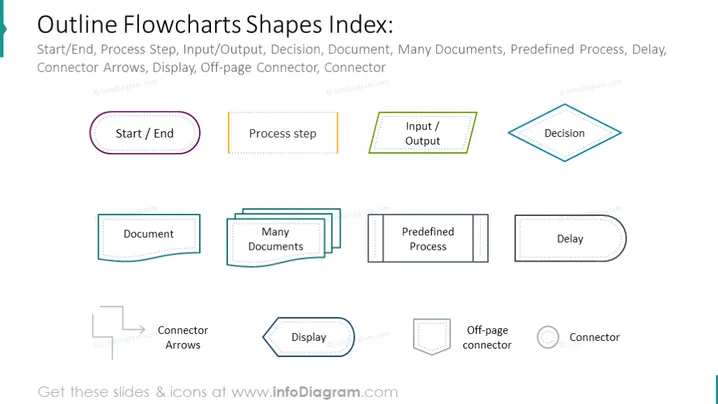
The slide is a visual index of various shapes used in flowcharts, depicted in an outline style. It includes 'Start/End', 'Process step', 'Input/Output', 'Decision', 'Document', 'Many Documents', 'Predefined Process', and 'Delay', each represented by a distinctive shape. Also featured are 'Connector Arrows', 'Display', and 'Off-page Connector', which facilitate the depiction of process flow and ancillary information. These elements serve as the building blocks for creating flowcharts that map out processes, decisions, and document flows in an organized manner.
The slide features a clean and organized display of flowchart symbols, each with a simple outline design. The color coding and varied line styles help differentiate between the types of flowchart elements.



