Reviews
Your graphics add a nice touch to my presentations and I recently used them for one of my all-hands meetings. Your toolbox adds professionalism to my slides. Instead of using standard clipart.
I needed a fresh look at some of my slides. I've tried to find a way to create a paintbrush effect, to underline, accentuate, add some color and the handwritten markers were just the things. Very easy to use, easy to size, change the color. It was an affordable, perfect solution and I'm happy to recommend it.
The crisp, clean look of the graphics, and the fact that it allowed me to easily edit and change the colors to match the template was my main reason for purchasing them.
Description
TITLE
Slide Content
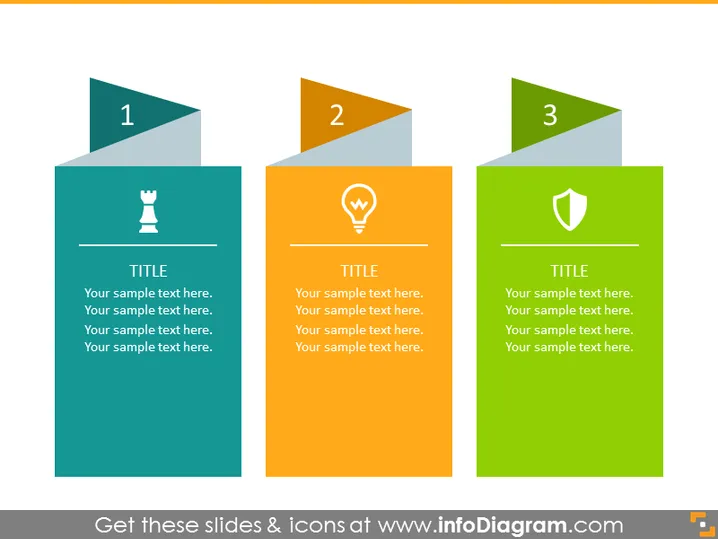
The slide presents a three-step process or a set of three categories, each represented by a numbered banner and a color block with a unique icon and placeholder text. The first step/category is indicated by the number "1" and includes a chess piece icon, suggesting strategy or planning. The second, marked by the number "2", features a light bulb icon, possibly representing ideas or innovation. The third, number "3", bears a shield icon, which may symbolize protection or security. Each step/category has its own title and placeholder text area for additional details.
Graphical Look
- The slide has a simple and clean design with flat graphics.
- There are three colored rectangular blocks, each with a differently colored folded corner with a number from 1 to 3.
- Each block is associated with a distinct color: teal, orange, and green.
- On top of each colored block, there is a white icon centered: a chess piece on the first, a light bulb on the second, and a shield on the third.
- Below each icon, a horizontal line separates the icon from the text area.
- The text area contains the word "TITLE" in bold, followed by four lines of placeholder text.
- The layout uses a consistent font and font sizes across all three blocks.
The overall look of the slide is modern and professional, making use of contrast and color to differentiate between the elements. The icons are simple yet meaningful, aiding in the visual representation of the concepts being presented.
Use Cases
- To outline a strategic plan or project phases, where each color block represents a phase with its key focus or goal.
- For comparing three different concepts or ideas, using the icons to visually represent each topic.
- In workshops or team meetings to present a framework or process in a clear, visually engaging way.
- As a teaching tool in educational presentations to highlight three important elements or steps in a lesson.
How to Edit
How to edit text & colors

How to expand / shorten diagram

How to Replace Icons in infoDiagram PPT


