

Your graphics add a nice touch to my presentations and I recently used them for one of my all-hands meetings. Your toolbox adds professionalism to my slides. Instead of using standard clipart.
Claude Jones, Director of Engineer, @Walmartlabs, USA

Your graphics add a nice touch to my presentations and I recently used them for one of my all-hands meetings. Your toolbox adds professionalism to my slides. Instead of using standard clipart.
Claude Jones, Director of Engineer, @Walmartlabs, USA
I needed a fresh look at some of my slides. I've tried to find a way to create a paintbrush effect, to underline, accentuate, add some color and the handwritten markers were just the things. Very easy to use, easy to size, change the color. It was an affordable, perfect solution and I'm happy to recommend it.
Anonymous, US
The crisp, clean look of the graphics, and the fact that it allowed me to easily edit and change the colors to match the template was my main reason for purchasing them.
Brandie Jenkins, E-learning Developer, USA
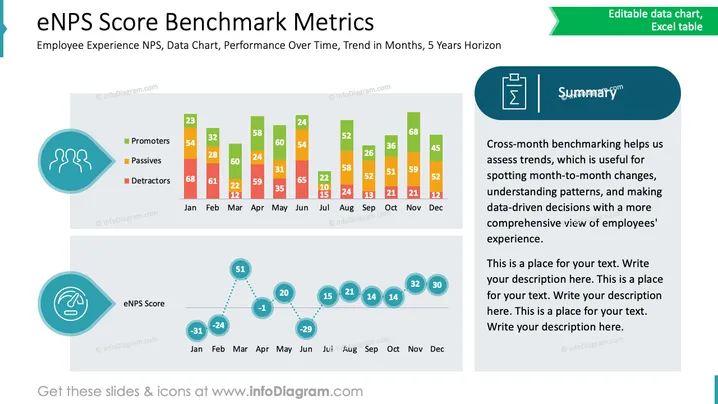
The slide describes the "eNPS Score Benchmark Metrics", focusing on employee experience through NPS scores. It is a trend indicator of performance over time, analyzing the data across months and a five-year horizon. It identifies Promoters, Passives, and Detractors who influence employee satisfaction. The summary notes that cross-month benchmarking aids in identifying trends, spotting month-to-month changes, understanding patterns, and enabling data-driven decisions for a comprehensive view of employee experience.
The slide is divided into three main sections: a bar chart, a line chart, and a summary box.
Bar Chart: Displays monthly data with three categories: green for Promoters, orange for Passives, and red for Detractors. Bars are stacked to show quantities.
Line Chart: Shows eNPS scores across months with blue circles at data points connected by dashed lines, illustrating performance changes.
Summary Box: A teal heading with a calculator icon and the word "Summary," containing text explaining the importance of the data.
Icons: Two teal icons are on the left, one representing people and the other eNPS, adding visual emphasis to sections.
The slide effectively combines data visualization with textual explanation, aiding in concise interpretation of employee satisfaction trends over time.



