

Your graphics add a nice touch to my presentations and I recently used them for one of my all-hands meetings. Your toolbox adds professionalism to my slides. Instead of using standard clipart.
Claude Jones, Director of Engineer, @Walmartlabs, USA

Your graphics add a nice touch to my presentations and I recently used them for one of my all-hands meetings. Your toolbox adds professionalism to my slides. Instead of using standard clipart.
Claude Jones, Director of Engineer, @Walmartlabs, USA
I needed a fresh look at some of my slides. I've tried to find a way to create a paintbrush effect, to underline, accentuate, add some color and the handwritten markers were just the things. Very easy to use, easy to size, change the color. It was an affordable, perfect solution and I'm happy to recommend it.
Anonymous, US
The crisp, clean look of the graphics, and the fact that it allowed me to easily edit and change the colors to match the template was my main reason for purchasing them.
Brandie Jenkins, E-learning Developer, USA
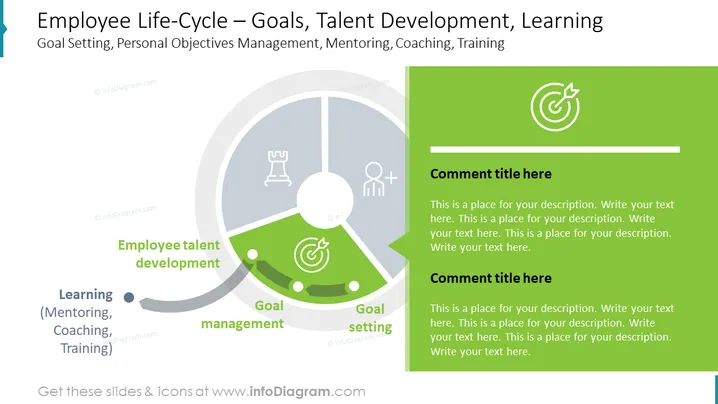
##Slide contents: The Employee Training Template shows the employee learning and training program. This employee life cycle contains a pie chart that illustrates the best practices of an effective training program. The learning and development programs are made up of three main stages. The first stage is goal setting, which is where new objectives are developed. The second stage is goal management, which includes developing a plan to achieve the goal. The third stage is employee talent development which consists of a learning method that covers, mentoring, coaching, and new employee training and development program. There is a text box next to the pie chart which allows you to write the important points. You can use this employee training program if you are a human resource manager who wants to create a training method to train employees. You can download this template on Google Slides and Keynote.
##Slide Infographic Description:
White Background, Text Box, Green Text Box, Pie Chart, Recruit Employee Icon, Target Icon, Goal Icon, Chess Piece Icon, Strategy Icon



