Reviews
Sus gráficos añaden un toque agradable a mis presentaciones y recientemente los usé para una de mis reuniones generales. Su conjunto de herramientas añade profesionalismo a mis diapositivas. En lugar de usar imágenes prediseñadas estándar.
Necesitaba un aspecto fresco para algunas de mis diapositivas. Había intentado encontrar una forma de crear un efecto de pincel, de subrayar, acentuar, añadir algo de color y los marcadores escritos a mano fueron justo lo que necesitaba. Muy fácil de usar, fácil de ajustar el tamaño, cambiar el color. Fue una solución asequible y perfecta, y estoy feliz de recomendarla.
El aspecto nítido y limpio de los gráficos, y el hecho de que me permitiera editar y cambiar fácilmente los colores para que coincidieran con la plantilla fue mi principal razón para comprarlos.
Description
Editing outline icons in PowerPoint
Slide Content
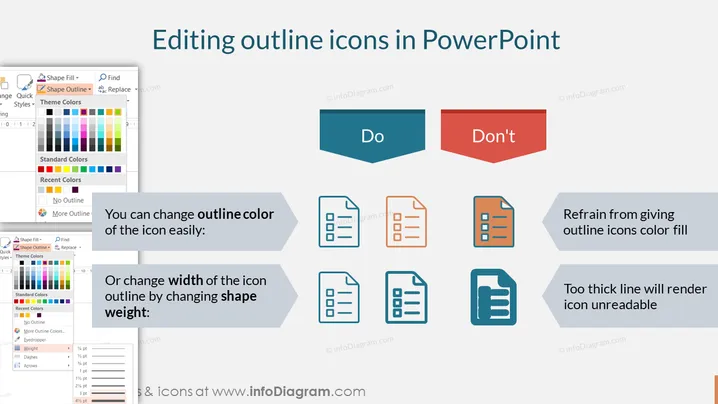
This PowerPoint slide, titled “Editing outline icons in PowerPoint,” contrasts recommended and non-recommended practices for icon customization. On the 'Do' side, it suggests that you can effortlessly change the icon's outline color or modify the icon outline's width by adjusting the shape weight—clarifying that these are simple and effective modifications. On the 'Don't' side, the guidance is to avoid giving outline icons a color fill and to not use excessively thick lines, as these can make the icon unclear and difficult to decipher.
Graphical Look
- The title is in large bold text at the top-center of the slide.
- Two main sections are visually differentiated using colored banners: A teal "Do" and a red "Don't."
- Below each section, explanatory text provides advice on handling outline icons.
- Sets of three icons are used to illustrate the correct (left) and incorrect (right) methods.
- Arrows pointing rightwards from the text to the icons highlight the connection between the description and the example.
- The 'Do' section icons show progression from a simple outline to a colored outline and then to different outline weights.
- The 'Don't' section includes icons filled with color and one with an overly thick outline.
- Each section's explanatory text is displayed in a white text box with subtle shadows for a sense of depth.
The slide is well-organized, with a visually clear distinction between the ‘Do’ and ‘Don’t’ sections. The use of icons and color coding effectively conveys the correct and incorrect methods of editing outline icons.
Use Cases
- To provide a quick tutorial on editing visual elements in PowerPoint during a training or workshop.
- In design guidelines or style guides to ensure consistency in presentations across a team or organization.
- As part of an instructional presentation about best practices for creating clear and compelling slides.
- When introducing PowerPoint features to new users to highlight the impact of visual aesthetics on presentation quality.
How to Edit
How to edit text & colors

How to expand / shorten diagram

How to Replace Icons in infoDiagram PPT


