Reviews
Ihre Grafiken verleihen meinen Präsentationen eine nette Note, und ich habe sie kürzlich für eines meiner All-Hands-Meetings verwendet. Ihre Toolbox verleiht meinen Folien Professionalität, anstatt Standard-Clipart zu verwenden.
Ich brauchte einen neuen Blick auf einige meiner Folien. Ich habe versucht, einen Weg zu finden, einen Pinselschlag-Effekt zu erzielen, um zu unterstreichen, hervorzuheben, Farbe hinzuzufügen, und die handgeschriebenen Markierungen waren genau das Richtige. Sehr einfach zu bedienen, leicht in der Größe zu ändern, die Farbe zu ändern. Es war eine erschwingliche, perfekte Lösung und ich empfehle sie gerne weiter.
Die klare, saubere Optik der Grafiken und die Tatsache, dass ich die Farben leicht bearbeiten und an die Vorlage anpassen konnte, war mein Hauptgrund für den Kauf.
Description
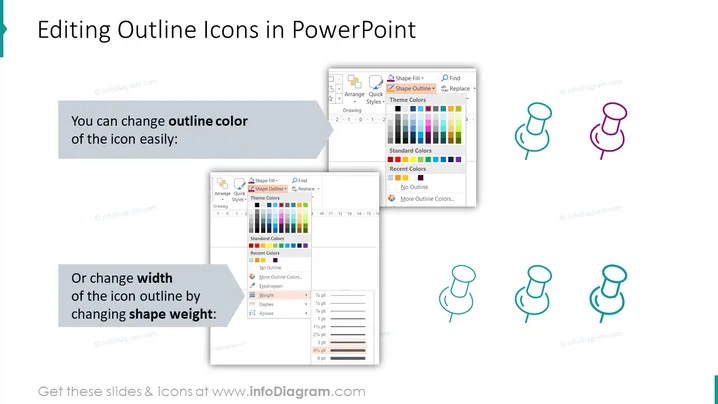
Editing Outline Icons in PowerPoint
Slide Content
The PowerPoint slide is titled "Editing Outline Icons in PowerPoint" and details two primary ways to edit outline icons within the PowerPoint software. The first is changing the outline color, which can easily be adapted to the user's preference. This allows for customization and visual differentiation, making the icons fit with various design themes or branding colors. The second method is adjusting the width of the icon outline by changing the shape weight; this feature allows for a subtler or more pronounced presence of the icons depending on their line thickness, which can help in adjusting the icons' prominence on the slide or in accordance with the overall design style.
Graphical Look
- The slide has a light background with a title at the top in bold, dark text.
- Two blocks of text are set in a larger font than the body text, highlighted in blue, accentuating the key actions "change outline color" and "change width."
- There are two sets of images: on the left, there are screenshots demonstrating the color change interface; on the right is the width setting.
- Each set of images is accompanied by three icons showing the effects of the respective changes: the first row displays color variations, and the second row exhibits different outline widths.
- The images are partially overlapped, creating a dynamic, layered look.
- The icons are simple stick figures composed of circles and lines, representative of PowerPoint's outline icons.
The slide utilizes a clean and organized layout, where visual aids clearly demonstrate the text's instructions. The use of contrasting colors and varying icon sizes helps to emphasize the effects of different editing techniques.
Use Cases
- During a tutorial or training session teaching users how to customize icons in PowerPoint.
- In a presentation design workshop where participants learn to align visual elements with corporate branding.
- During an internal company meeting to guide employees on standardizing presentation aesthetics according to brand guidelines.
- In a webinar aimed at improving visual communication, illustrating simple yet effective PowerPoint editing tricks.
How to Edit
How to edit text & colors

How to expand / shorten diagram

How to Replace Icons in infoDiagram PPT


