Reviews
Your graphics add a nice touch to my presentations and I recently used them for one of my all-hands meetings. Your toolbox adds professionalism to my slides. Instead of using standard clipart.
I needed a fresh look at some of my slides. I've tried to find a way to create a paintbrush effect, to underline, accentuate, add some color and the handwritten markers were just the things. Very easy to use, easy to size, change the color. It was an affordable, perfect solution and I'm happy to recommend it.
The crisp, clean look of the graphics, and the fact that it allowed me to easily edit and change the colors to match the template was my main reason for purchasing them.
Description
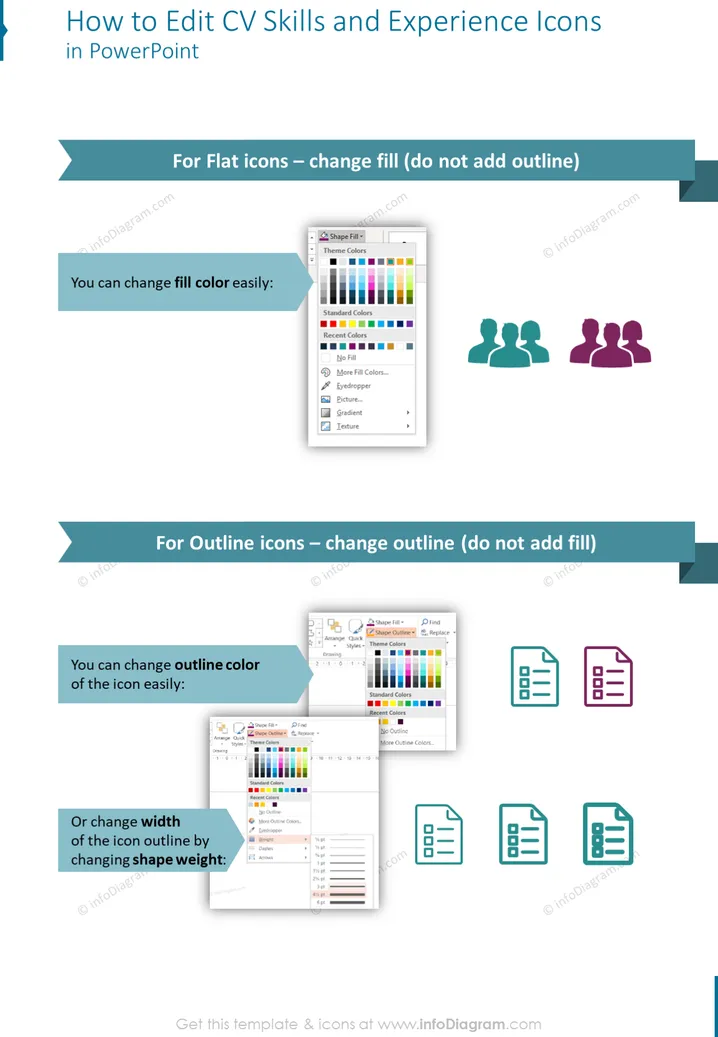
How to Edit CV Skills and Experience Icons in PowerPoint
Slide Content
The slide provides instructions on editing CV skills and experience icons in PowerPoint tailored for two types of icons: flat and outline. For flat icons, it recommends changing the fill color without adding an outline, showing that color customization can be done quickly. This means one can modify the visual appearance to better match the presentation’s color scheme or to emphasize particular skills. For outline icons, it suggests changing the outline color or the shape weight, which relates to adjusting the visual strength and focus of the icons by altering their border color or thickness. These modifications can help highlight different levels of proficiency or experience visually.
Graphical Look
- The slide title is prominently displayed at the top in a large, bold font on a dark rectangular background.
- There is a light blue band that highlights the section titles, each followed by specific instructions.
- Two sets of icons exemplify flat and outline icons, with corresponding color and thickness edits.
- Screenshots of PowerPoint's editing panels display how to perform each recommended action, serving as a visual guide.
- A color palette screenshot accompanies the flat icon instructions, while another screenshot displays the line weight options for the outline icons.
- The overall layout is clean, with a blend of text, images, and iconography that is designed to convey instructions visually and textually.
The slide has a professional and instructional design. It uses visual hierarchy effectively, employing color and size to guide the viewer's gaze from the title to the specific editing instructions.
Use Cases
- In a workshop or seminar teaching PowerPoint skills for enhancing professional documents like resumes.
- During an onboarding process where HR explains to new employees how to customize their internal profile badges or icons.
- As a part of a training module for graphic designers focusing on branding and presentation consistency.
- In educational settings where students learn about visual communication and document formatting.
How to Edit
How to edit text & colors

How to expand / shorten diagram

How to Replace Icons in infoDiagram PPT


