Reviews
Sus gráficos añaden un toque agradable a mis presentaciones y recientemente los usé para una de mis reuniones generales. Su conjunto de herramientas añade profesionalismo a mis diapositivas. En lugar de usar imágenes prediseñadas estándar.
Necesitaba un aspecto fresco para algunas de mis diapositivas. Había intentado encontrar una forma de crear un efecto de pincel, de subrayar, acentuar, añadir algo de color y los marcadores escritos a mano fueron justo lo que necesitaba. Muy fácil de usar, fácil de ajustar el tamaño, cambiar el color. Fue una solución asequible y perfecta, y estoy feliz de recomendarla.
El aspecto nítido y limpio de los gráficos, y el hecho de que me permitiera editar y cambiar fácilmente los colores para que coincidieran con la plantilla fue mi principal razón para comprarlos.
Description
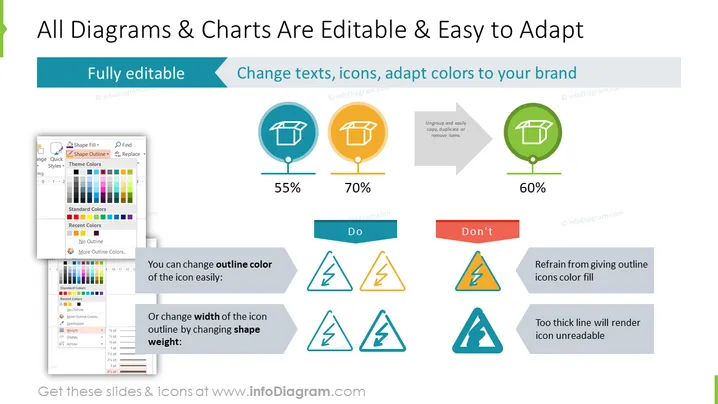
All Diagrams & Charts Are Editable & Easy to Adapt
Slide Content
This PowerPoint slide presents the customization options for diagrams and charts, emphasizing their editable nature and flexibility in adaptation to a brand's visual identity. It showcases examples of how to change icon outline colors and shape weights, illustrating good and bad practices with percentage scores that indicate the effectiveness of each approach. Key actionable items include the ability for full customization, changing texts, adapting icons, and adjusting to brand colors. The slide lists essential do's and don'ts: do change the outline color and shape weight, but don't give outline icons a color fill or use excessively thick lines as they reduce readability.
Graphical Look
-
The slide has a light background with a header banner of turquoise blue.
-
Title text in black, using a large, bold font that stands out.
-
Three circular icons in a row, each with a percentage beneath them, representing levels of customization. They are colored in teal, orange, and green.
-
Adjacent to each icon is an arrow leading to a graphic with a text box showcasing best practices.
-
A set of three warning and advice triangles beneath the row of circular icons, illustrating incorrect practices.
-
Each triangular icon set comes with an accompanying explanation, colored in red for 'Don't' and blue for 'Do'.
-
A sizable screenshot of a color and outline selection menu from PowerPoint features in the bottom left corner.
-
The layout is balanced with a good mix of text, icons, and images.
The overall look of the slide is professional and visually appealing, using color coordination and iconography to effectively communicate the customization possibilities in PowerPoint.
Use Cases
- Presenting a tutorial on creating brand-aligned presentations to marketing teams.
- Conducting a training session for new hires on utilizing company PowerPoint templates effectively.
- Showcasing the versatility of PowerPoint to a client during a pitch for presentation design services.
- Offering a webinar on best practices in presentation design for non-designer professionals.
How to Edit
How to edit text & colors

How to expand / shorten diagram

How to Replace Icons in infoDiagram PPT


