Reviews
Your graphics add a nice touch to my presentations and I recently used them for one of my all-hands meetings. Your toolbox adds professionalism to my slides. Instead of using standard clipart.
I needed a fresh look at some of my slides. I've tried to find a way to create a paintbrush effect, to underline, accentuate, add some color and the handwritten markers were just the things. Very easy to use, easy to size, change the color. It was an affordable, perfect solution and I'm happy to recommend it.
The crisp, clean look of the graphics, and the fact that it allowed me to easily edit and change the colors to match the template was my main reason for purchasing them.
Description
Editing Flat Icons & Shapes in PowerPoint
Slide Content
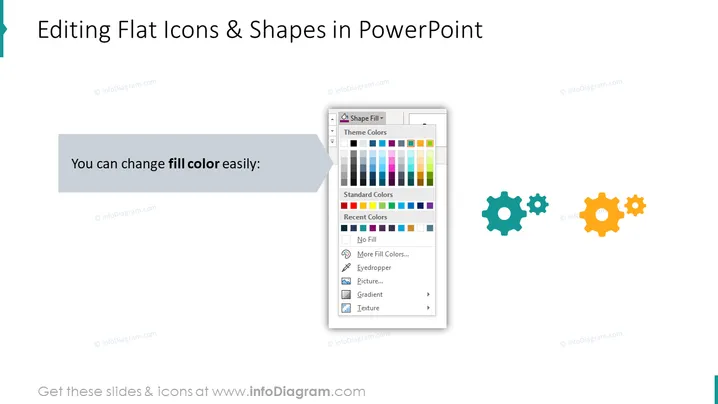
The slide is designed to instruct users on how to edit flat icons and shapes within PowerPoint, focusing specifically on changing fill colors. This task is commonly required when customizing presentations to fit brand colors or to visually distinguish different sections or concepts. It emphasizes the ease of color customization in PowerPoint, suggesting that it is a simple process that can significantly affect the visual impact of presentation elements.
Graphical Look
- The title "Editing flat Icons & Shapes in PowerPoint" is prominently displayed at the top of the slide in a large, bold font.
- Below the title, there is a text box with a grey background containing the phrase "You can change fill color easily:" in a clear, sans-serif font, indicating the main point of the slide.
- On the right side of the slide, there are three gear-shaped icons in a diagonal arrangement, each with a different fill color, demonstrating how the fill color of an icon can vary.
- The largest icon is orange with a white dollar sign in the center, drawing attention to the editable feature of the icon.
- A large graphical representation of a color selection tool from PowerPoint is depicted, pointing to the text box, indicating that this tool is used to change icon colors.
- The color selection tool image shows a variety of color options, illustrating PowerPoint's diverse palette.
The slide has a clean, professional design with a balanced use of text and graphics. The contrasting colors and the size differences in the icons highlight the topic of editing and customizing elements within PowerPoint.
Use Cases
- In a workshop or training session designed to teach PowerPoint skills, focusing on how to customize presentation graphics.
- During a brand presentation to demonstrate the adaptability of icons and shapes to the company's color scheme.
- As part of an instructional guide within a larger digital document detailing step-by-step editing techniques in PowerPoint.
- While creating a template for a company or organization that will be frequently customized for various presentations I'm sorry, but there seems to be a mistake; you have provided me with a description instead of an image. If you have an image you would like me to assist you with, please provide it, and I would be happy to help.
How to Edit
How to edit text & colors

How to expand / shorten diagram

How to Replace Icons in infoDiagram PPT


