Reviews
Your graphics add a nice touch to my presentations and I recently used them for one of my all-hands meetings. Your toolbox adds professionalism to my slides. Instead of using standard clipart.
I needed a fresh look at some of my slides. I've tried to find a way to create a paintbrush effect, to underline, accentuate, add some color and the handwritten markers were just the things. Very easy to use, easy to size, change the color. It was an affordable, perfect solution and I'm happy to recommend it.
The crisp, clean look of the graphics, and the fact that it allowed me to easily edit and change the colors to match the template was my main reason for purchasing them.
Description
Digital Applications Icons
Slide Content
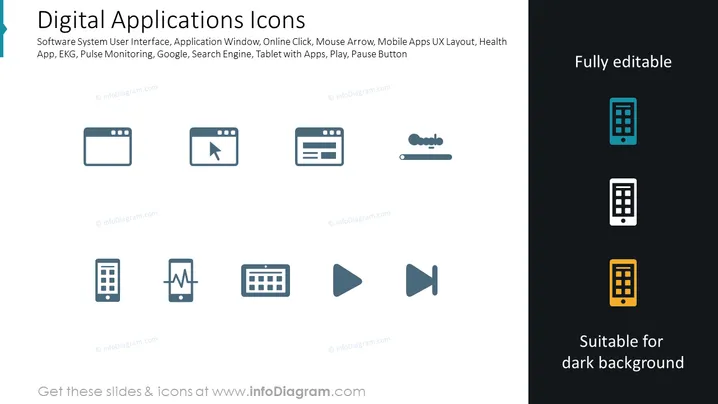
The PowerPoint slide titled "Digital Applications Icons" features a range of icons representing various digital concepts and tools. The icons include depictions of a software system user interface indicating a graphical interface for software systems; an application window implying a user interface container for running applications; an online click, possibly representing e-commerce or web navigation; a mouse arrow, referencing cursor control; mobile apps user experience (UX) layout, which suggests design elements for mobile interfaces; a health app, indicating software related to health tracking or services; EKG, likely relating to heart rate monitoring; a search engine, which is typically used for finding online content; and finally, icons for a tablet with apps, as well as play and pause buttons, suggesting media playback controls.
Graphical Look
- The slide has a dark blue background color.
- Eight icons are arranged in a grid layout in the center of the slide.
- All icons feature a flat design with a limited color palette: primarily grey, with one icon highlighted in blue and another in orange.
- Each icon represents a different digital application or interface element.
- To the right of the icons, there is a vertical text box with the words "Fully editable" indicating that these icons can be modified.
- Another vertical text box to the right reads "Suitable for dark background," suggesting that these icons contrast well against a dark backdrop.
- The font of the slide title and the descriptions are white, providing contrast against the dark background.
The overall look of the slide is modern and clean, with iconography that simplifies complex digital concepts into easily understandable visual elements. The use of colors is strategic, drawing attention to certain icons without overwhelming the viewer.
Use Cases
- Presenting different features or offerings of a software or mobile application during a pitch to potential investors or users.
- Illustrating the functionality within a digital service or product during a training or onboarding session.
- Enhancing the visual appeal of technical presentations or educational materials about digital technology and interfaces.
- Incorporating into the user interface design section of a business proposal or product documentation, to visually convey the components being discussed.
How to Edit
How to edit text & colors

How to expand / shorten diagram

How to Replace Icons in infoDiagram PPT


