Reviews
Your graphics add a nice touch to my presentations and I recently used them for one of my all-hands meetings. Your toolbox adds professionalism to my slides. Instead of using standard clipart.
I needed a fresh look at some of my slides. I've tried to find a way to create a paintbrush effect, to underline, accentuate, add some color and the handwritten markers were just the things. Very easy to use, easy to size, change the color. It was an affordable, perfect solution and I'm happy to recommend it.
The crisp, clean look of the graphics, and the fact that it allowed me to easily edit and change the colors to match the template was my main reason for purchasing them.
Description
Contact
Slide Content
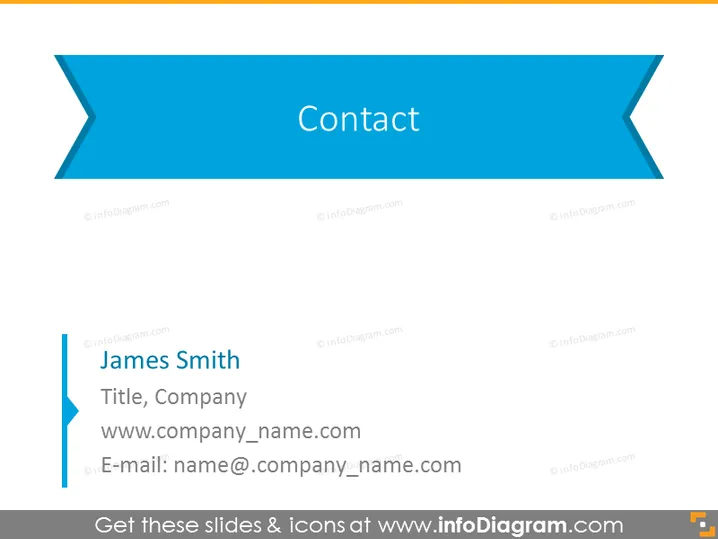
This PowerPoint slide is designed to provide contact information for a person named James Smith. It includes a placeholder for the individual's title and company, giving an idea of their professional role. It also features a generic website URL, www.company_name.com, indicating the company's web presence where further information may be available. Lastly, an email address, name@.company_name.com, is provided, allowing for direct correspondence.
Graphical Look
- The slide has a striking blue banner at the top with the title "Contact" in white uppercase letters.
- Below the banner, there is a left-aligned vertical line followed by the name "James Smith" in bold.
- Each item of contact information (title, company, website, and email) is aligned to the left, creating a clean and organized appearance.
- There are blue vector icons representing a person, a link for a website, and an envelope for the email, visually symbolizing each type of contact information.
- The background of the slide is white, which contrasts with the blue header and icons.
The overall look of the slide is modern and professional, with a clear visual hierarchy that guides the viewer's attention from the slide title to the contact information. The use of icons helps quickly communicate the type of information provided.
Use Cases
- This slide can be used at the end of a business presentation to provide contact details for follow-up.
- It can be integrated into a corporate profile to introduce a key team member or point of contact.
- The slide could serve as a template for networking events where participants exchange contact details.
- It might also be useful in sales or marketing materials where potential clients or partners might need direct contact information.
How to Edit
How to edit text & colors

How to expand / shorten diagram

How to Replace Icons in infoDiagram PPT


