

Your graphics add a nice touch to my presentations and I recently used them for one of my all-hands meetings. Your toolbox adds professionalism to my slides. Instead of using standard clipart.
Claude Jones, Director of Engineer, @Walmartlabs, USA

Your graphics add a nice touch to my presentations and I recently used them for one of my all-hands meetings. Your toolbox adds professionalism to my slides. Instead of using standard clipart.
Claude Jones, Director of Engineer, @Walmartlabs, USA
I needed a fresh look at some of my slides. I've tried to find a way to create a paintbrush effect, to underline, accentuate, add some color and the handwritten markers were just the things. Very easy to use, easy to size, change the color. It was an affordable, perfect solution and I'm happy to recommend it.
Anonymous, US
The crisp, clean look of the graphics, and the fact that it allowed me to easily edit and change the colors to match the template was my main reason for purchasing them.
Brandie Jenkins, E-learning Developer, USA
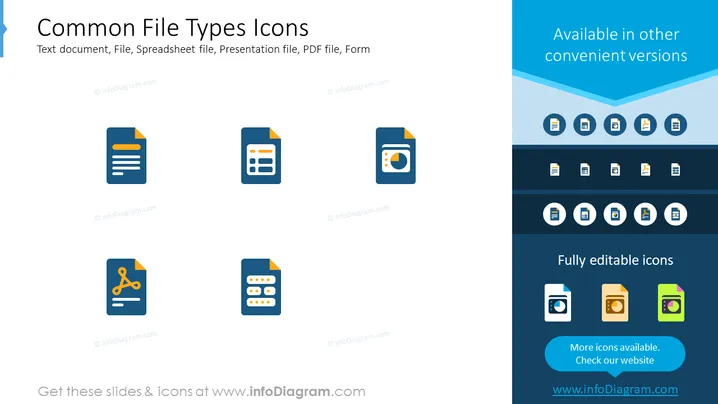
The presentation slide displays a collection of icons representing common file types. These include a Text document icon, signaling a standard written document; a File icon, which is generic and could refer to any file; a Spreadsheet file icon, indicating data organized in rows and columns, commonly used for calculations; a Presentation file icon, representing slide decks used for showcasing information; a PDF file icon, denoting a Portable Document Format file which is widely used for documents that require preserving layout; and a Form icon, which commonly refers to files used for data entry or surveys.
The slide has a clean, professional look with a modern design aesthetic. The use of color is minimal, focusing on blue tones and a balance of visual elements.



