Reviews
Sus gráficos añaden un toque agradable a mis presentaciones y recientemente los usé para una de mis reuniones generales. Su conjunto de herramientas añade profesionalismo a mis diapositivas. En lugar de usar imágenes prediseñadas estándar.
Necesitaba un aspecto fresco para algunas de mis diapositivas. Había intentado encontrar una forma de crear un efecto de pincel, de subrayar, acentuar, añadir algo de color y los marcadores escritos a mano fueron justo lo que necesitaba. Muy fácil de usar, fácil de ajustar el tamaño, cambiar el color. Fue una solución asequible y perfecta, y estoy feliz de recomendarla.
El aspecto nítido y limpio de los gráficos, y el hecho de que me permitiera editar y cambiar fácilmente los colores para que coincidieran con la plantilla fue mi principal razón para comprarlos.
Description
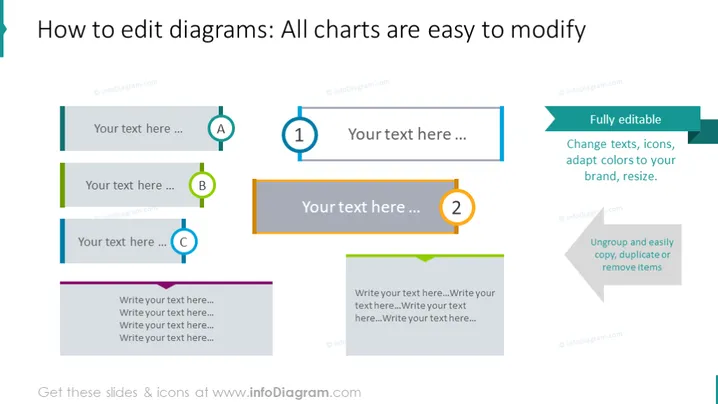
How to edit diagrams: All charts are easy to modify
Slide Content
The slide appears to be part of a tutorial on how to edit diagrams in a presentation software. It emphasizes that all charts are easy to modify and provides visual examples and placeholders for custom content. Section A, B, and C likely represent steps or components in a process, each accompanied by a description area for detailed text, while the larger rectangle marked "2" might focus on a specific aspect or highlight a key point. The side panel with green text reinforces that elements are fully editable, from text to colors, and can be resized, ungrouped, and easily manipulated.
Graphical Look
- Three content blocks on the left, labeled A, B, and C, with accompanying editable text fields, color-coded borders, and circular icons with capital letters inside.
- A large rectangular content block in the center-right with an orange border and a number "2" in a circle, indicating a second step or point with a larger editable text field inside.
- A sidebar text box on the right, with a darker background color and a lighter text color, outlining key features such as full editability, resizing, text and icon changes, duplication, and item removal.
- Horizontal lines at the top and bottom of the slide, providing visual boundaries for the slide's content.
The overall look of the slide is clean and modern, with a strong focus on simplicity and editability. The color-coded elements help to distinguish between different sections or steps, and the overall design is conducive to customization.
Use Cases
- To demonstrate how to customize various chart and diagram types in a presentation software training session.
- In a sales pitch to showcase the adaptability of a product's visual components to a client's branding.
- For internal team meetings when explaining the process of updating presentation materials.
- During a workshop or webinar on effective presentation skills, highlighting the importance of visual aid flexibility.
How to Edit
How to edit text & colors

How to expand / shorten diagram

How to Replace Icons in infoDiagram PPT


