Reviews
Your graphics add a nice touch to my presentations and I recently used them for one of my all-hands meetings. Your toolbox adds professionalism to my slides. Instead of using standard clipart.
I needed a fresh look at some of my slides. I've tried to find a way to create a paintbrush effect, to underline, accentuate, add some color and the handwritten markers were just the things. Very easy to use, easy to size, change the color. It was an affordable, perfect solution and I'm happy to recommend it.
The crisp, clean look of the graphics, and the fact that it allowed me to easily edit and change the colors to match the template was my main reason for purchasing them.
Description
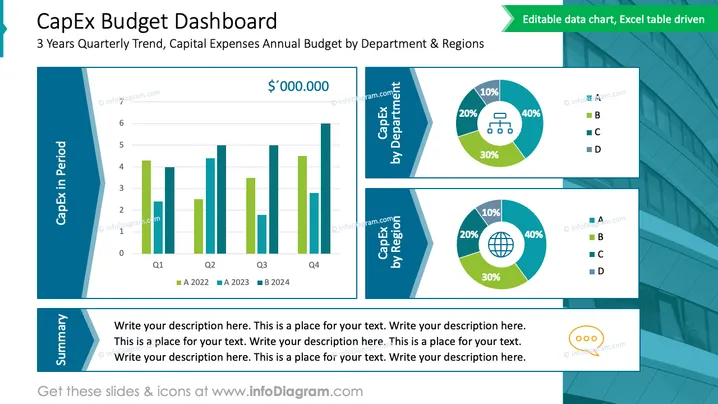
CapEx Budget Dashboard
Slide Content
This PowerPoint slide is titled "CapEx Budget Dashboard" and showcases a 3 Year Quarterly Trend and Capital Expenses Annual Budget by Department & Regions. The slide is structured into three sections: a bar chart illustrating capital expenditures (CapEx) over four quarters of two different years, and two donut charts breaking down expenses by department and by region. Each section is labeled clearly, and the donut charts feature percentage breakdowns for four categories, referred to as A, B, C, and D, enabling the viewer to quickly assess the distribution of CapEx.
Graphical Look
- The slide background is predominantly white with blue geometric shapes along the left-hand side and lower edge.
- The title "CapEx Budget Dashboard" is in large, bold, dark blue font at the top of the slide.
- Subtitle text is smaller, explaining the scope of the data - "3 Years Quarterly Trend, Capital Expenses Annual Budget by Department & Regions."
- A large bar chart is aligned to the left, with two bars per quarter representing two different years, coded as "A 2022" and "B 2024" in shades of green.
- The y-axis of the bar chart is labeled "CapEx in Period" with numerical values from 0 to 6, and the x-axis has labels "Q1" through "Q4."
- There are two donut charts to the right, one labeled "CapEx by Department" and the other "CapEx by Region," each segmented into four colored sections with corresponding percent values.
- Beneath the donut charts, a legend aligns the colors to categories A, B, C, and D.
- A summary box at the bottom left of the slide provides space for additional text and mirrors the blue geometric shape and design of the slide.
- An orange circular graphic with three ellipses appears to indicate more slides or information might follow.
The slide has a clean and professional layout with a good balance of text, charts, and aesthetic design elements. The contrasting shades of blue and green add visual interest and assist in distinguishing various data points.
Use Cases
- Presenting a financial overview to stakeholders during corporate meetings.
- Visualizing departmental or regional budget allocations in a company's annual report.
- Analyzing financial data during strategic planning sessions with executive teams.
- Delivering a quarterly business review to highlight financial performance and capital expenditure trends.
How to Edit
How to edit text & colors

How to expand / shorten diagram

How to Replace Icons in infoDiagram PPT


