

Your graphics add a nice touch to my presentations and I recently used them for one of my all-hands meetings. Your toolbox adds professionalism to my slides. Instead of using standard clipart.
Claude Jones, Director of Engineer, @Walmartlabs, USA

Your graphics add a nice touch to my presentations and I recently used them for one of my all-hands meetings. Your toolbox adds professionalism to my slides. Instead of using standard clipart.
Claude Jones, Director of Engineer, @Walmartlabs, USA
I needed a fresh look at some of my slides. I've tried to find a way to create a paintbrush effect, to underline, accentuate, add some color and the handwritten markers were just the things. Very easy to use, easy to size, change the color. It was an affordable, perfect solution and I'm happy to recommend it.
Anonymous, US
The crisp, clean look of the graphics, and the fact that it allowed me to easily edit and change the colors to match the template was my main reason for purchasing them.
Brandie Jenkins, E-learning Developer, USA
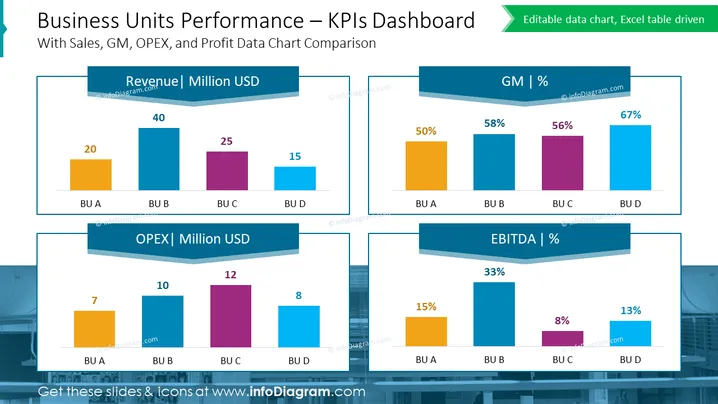
The PowerPoint slide is a KPI dashboard comparing sales, gross margin (GM), operating expenses (OPEX), and EBITDA for four different business units (BU A, BU B, BU C, BU D). The first chart shows revenue in millions of USD, indicating that BU B has the highest revenue at 40 million, followed by BU C, D, and A. The GM percentages show BU D leading at 67%, with others trailing behind. OPEX is listed in millions of USD, and EBITDA percentages illustrate BU B’s dominance at 33% compared to the others.
The overall look of the slide is clean and professional, using a cohesive color scheme. The data is presented in a visually engaging manner with clear labels and a straightforward layout for easy comparison.



