Reviews
Sus gráficos añaden un toque agradable a mis presentaciones y recientemente los usé para una de mis reuniones generales. Su conjunto de herramientas añade profesionalismo a mis diapositivas. En lugar de usar imágenes prediseñadas estándar.
Necesitaba un aspecto fresco para algunas de mis diapositivas. Había intentado encontrar una forma de crear un efecto de pincel, de subrayar, acentuar, añadir algo de color y los marcadores escritos a mano fueron justo lo que necesitaba. Muy fácil de usar, fácil de ajustar el tamaño, cambiar el color. Fue una solución asequible y perfecta, y estoy feliz de recomendarla.
El aspecto nítido y limpio de los gráficos, y el hecho de que me permitiera editar y cambiar fácilmente los colores para que coincidieran con la plantilla fue mi principal razón para comprarlos.
Description
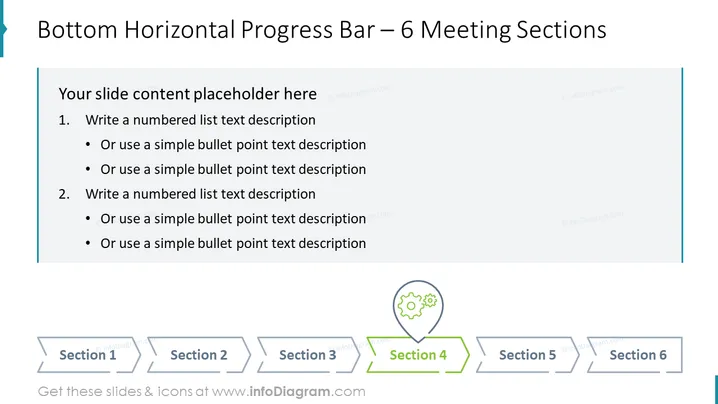
Bottom Horizontal Progress Bar – 6 Meeting Sections
Slide Content
The PowerPoint slide is designed to showcase a project or meeting progress through a bottom horizontal progress bar featuring six sections. Each section likely represents a phase or topic within a meeting or a project. The slide provides options for both numbered lists and bullet point descriptions for detailed elaboration of content. This structured representation can translate complex processes into digestible parts, making it ideal for step-by-step explanations or tracking progress in various scenarios.
Graphical Look
- The slide has a teal and gray color scheme, with teal accents on the sides and gray for the progress bar and content section.
- The title of the slide is prominently displayed at the top in a large, bold font.
- A content area is divided into two parts; the upper part is for text and lists whereas the lower part highlights the progress bar.
- The upper content section includes placeholder text for a title, a numbered list, and bullet points, indicating where to add details.
- The progress bar is located at the bottom of the slide, emphasized with a contrasting dark teal color.
- Each of the six sections in the progress bar has a labeled tab; "Section 4" is distinguished by a color fill and an icon of gears in a sphere, signifying the current or highlighted phase.
- Horizontal arrows connect each section, suggesting progression or sequence.
The slide has a clean and professional appearance with a clear contrast between the content area and the progress bar. The use of icons and color differentiation helps in effortlessly drawing attention to specific sections or stages.
Use Cases
- Tracking stages of the project lifecycle during a status update or project management presentation.
- Outlining the agenda of a multi-section meeting and highlighting the current section being discussed.
- Clearly demonstrating a workstream or process flow over a defined number of steps in training or informative sessions.
- Providing a visual cue for the progression through different topics in a workshop or seminar.
How to Edit
How to edit text & colors

How to expand / shorten diagram

How to Replace Icons in infoDiagram PPT


