Reviews
Sus gráficos añaden un toque agradable a mis presentaciones y recientemente los usé para una de mis reuniones generales. Su conjunto de herramientas añade profesionalismo a mis diapositivas. En lugar de usar imágenes prediseñadas estándar.
Necesitaba un aspecto fresco para algunas de mis diapositivas. Había intentado encontrar una forma de crear un efecto de pincel, de subrayar, acentuar, añadir algo de color y los marcadores escritos a mano fueron justo lo que necesitaba. Muy fácil de usar, fácil de ajustar el tamaño, cambiar el color. Fue una solución asequible y perfecta, y estoy feliz de recomendarla.
El aspecto nítido y limpio de los gráficos, y el hecho de que me permitiera editar y cambiar fácilmente los colores para que coincidieran con la plantilla fue mi principal razón para comprarlos.
Description
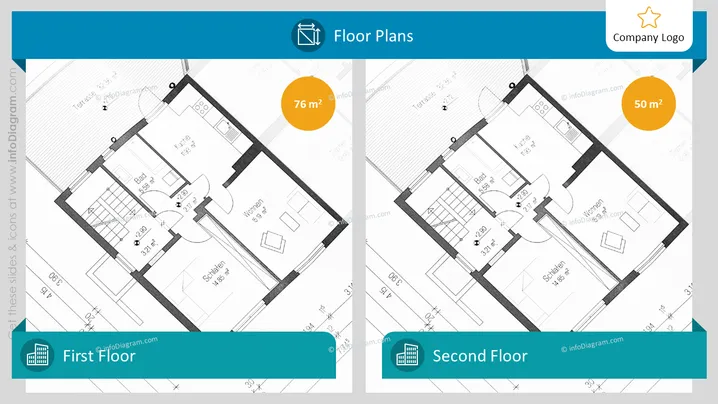
Floor Plans
Slide Content
The PowerPoint slide titled "Floor Plans" displays two separate floor plans, labeled "First Floor" and "Second Floor," to showcase the layout and size of a building's levels. Each floor plan is detailed with room labels such as "Wohnen," "Schlafen," and "Bad," and additionally shows the square meterage of the spaces, with 76 m² for the first floor and 50 m² for the second floor. The labeling of rooms provides clarity on the functionality of each space, and the inclusion of area measurements helps to understand the scale and distribution of space within the property.
Graphical Look
- Two main sections divide the slide horizontally, showing a floor plan each—left for the first floor, right for the second floor.
- The top of the slide features a dark blue banner with the title "Floor Plans."
- Each section has a colored tag at the bottom that matches the color of the title banner - teal for "First Floor" and dark blue for "Second Floor."
- Colored circles overlaying the floor plans display the area in square meters - yellow for 76 m² and orange for 50 m².
- A simplified house icon is present on both the left and right sections next to the floor plan titles.
- The company logo is placed in the top right corner of the slide within a star-shaped icon.
The slide has a neat and organized appearance, with a clear distinction between the two floor plans. The consistent use of color and design elements provides a professional aesthetic tailored for architectural or real estate presentations.
Use Cases
- Presenting architectural designs in a business meeting with clients or stakeholders.
- Illustrating the layout and space distribution in a real estate sales pitch.
- Discussing renovation plans or building extensions with contractors.
- Offering a visual comparison of multiple floor levels during an internal company presentation about facility management or space planning.
How to Edit
How to edit text & colors

How to expand / shorten diagram

How to Replace Icons in infoDiagram PPT


