Reviews
Sus gráficos añaden un toque agradable a mis presentaciones y recientemente los usé para una de mis reuniones generales. Su conjunto de herramientas añade profesionalismo a mis diapositivas. En lugar de usar imágenes prediseñadas estándar.
Necesitaba un aspecto fresco para algunas de mis diapositivas. Había intentado encontrar una forma de crear un efecto de pincel, de subrayar, acentuar, añadir algo de color y los marcadores escritos a mano fueron justo lo que necesitaba. Muy fácil de usar, fácil de ajustar el tamaño, cambiar el color. Fue una solución asequible y perfecta, y estoy feliz de recomendarla.
El aspecto nítido y limpio de los gráficos, y el hecho de que me permitiera editar y cambiar fácilmente los colores para que coincidieran con la plantilla fue mi principal razón para comprarlos.
Description
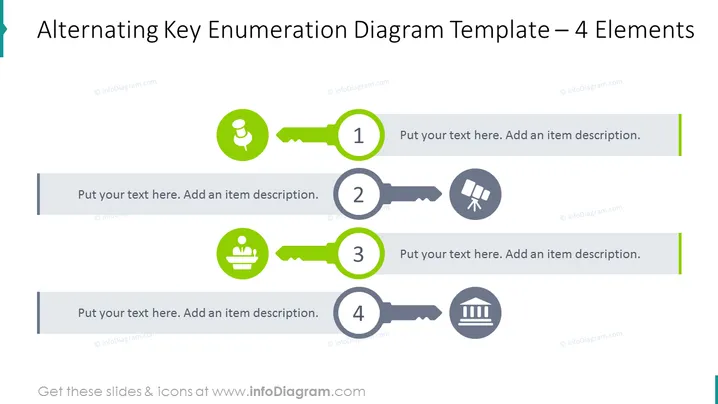
Alternating Key Enumeration Diagram Template – 4 Elements
Slide Content
The slide presents an "Alternating Key Enumeration Diagram" with 4 elements. Each element is represented by a key icon with a distinct central graphic, suggesting different concepts or topics. Accompanying each key is a circular label with a number, ranging from 1 to 4 and space for a description text. The sequential numbers imply a process or a set of items that are related and important for the subject at hand.
Graphical Look
- Four key icons in alternating colors (green and gray) with varying central symbols.
- Circular numbered labels (1 through 4) overlaying the left side of each key.
- A placeholder text box below each icon pair for item descriptions.
- Horizontal divider lines separating the description text boxes.
- Color-coordinated side borders that match the key icons above them (green lines for keys 1 and 3, and a light shade of gray for keys 2 and 4).
- The slide background is white, offering a stark contrast to the colorful elements.
- Flat design style is used for the graphics fostering a modern and clean aesthetic.
The overall look is clean and professional with a well-organized layout. The use of color coding and simple iconography makes the slide easy to follow and understand at a glance.
Use Cases
- To present a step-by-step process or sequential steps in a business project or plan.
- For illustrating key components or features of a product or service in a marketing presentation.
- To highlight major milestones or achievements in a company update or a status report.
- When describing the phases of a workflow or a set of procedural guidelines in a training or instructional setting.
How to Edit
How to edit text & colors

How to expand / shorten diagram

How to Replace Icons in infoDiagram PPT


