Reviews
Your graphics add a nice touch to my presentations and I recently used them for one of my all-hands meetings. Your toolbox adds professionalism to my slides. Instead of using standard clipart.
I needed a fresh look at some of my slides. I've tried to find a way to create a paintbrush effect, to underline, accentuate, add some color and the handwritten markers were just the things. Very easy to use, easy to size, change the color. It was an affordable, perfect solution and I'm happy to recommend it.
The crisp, clean look of the graphics, and the fact that it allowed me to easily edit and change the colors to match the template was my main reason for purchasing them.
Description
All diagram shapes are easy to modify
Slide Content
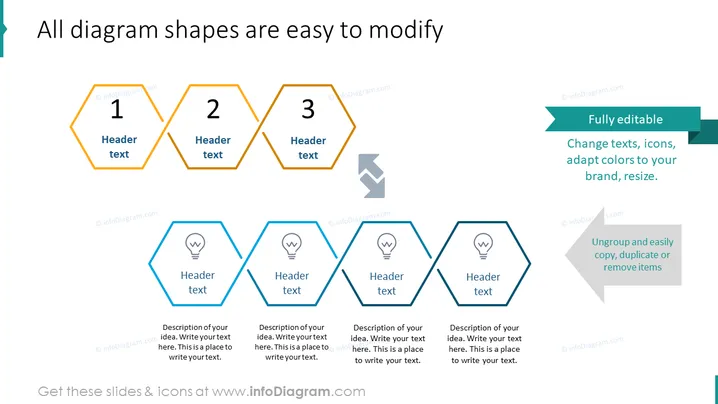
This PowerPoint slide presents a framework for demonstrating the modifiability of diagram shapes. The top section shows three hexagonal shapes, labeled "1", "2", and "3", each containing the placeholder "Header text" to indicate where the titles or key points would go. Below, a second row of larger hexagons contains icons and additional text areas for more detailed descriptions. This layout suggests a step-by-step process or category breakdown, where the upper hexagons serve as introductions to more in-depth content below.
Graphical Look
- Three orange hexagonal shapes in the top row, horizontally aligned and numbered "1", "2", and "3", each containing a placeholder for a title.
- A larger row of blue hexagonal shapes beneath the orange ones, with a lightbulb icon placed at the top of each shape.
- Each blue hexagon has a designated space for a header and a larger area for a more descriptive text.
- A large arrow pointing down from the orange hexagons to the blue ones, emphasizing the flow or connection between the upper and lower elements.
- Two text boxes with a green background located at the right side of the slide, giving information about the flexibility of the diagram.
The overall look of the slide is clean and organized, emphasizing structure and editability. The color contrast between the orange and blue shapes facilitates a visual distinction between levels of information.
Use Cases
- Explaining a three-step process where each step is elaborated upon with additional details or examples.
- Presenting a hierarchical flow of information from general concepts to specific details in business plans or reports.
- Demonstrating the adaptability of a product or concept in training materials or marketing presentations.
- Outlining a series of related ideas or concepts in a proposal or strategic document, where modification and customization are key.
How to Edit
How to edit text & colors

How to expand / shorten diagram

How to Replace Icons in infoDiagram PPT


