Reviews
Your graphics add a nice touch to my presentations and I recently used them for one of my all-hands meetings. Your toolbox adds professionalism to my slides. Instead of using standard clipart.
I needed a fresh look at some of my slides. I've tried to find a way to create a paintbrush effect, to underline, accentuate, add some color and the handwritten markers were just the things. Very easy to use, easy to size, change the color. It was an affordable, perfect solution and I'm happy to recommend it.
The crisp, clean look of the graphics, and the fact that it allowed me to easily edit and change the colors to match the template was my main reason for purchasing them.
Description
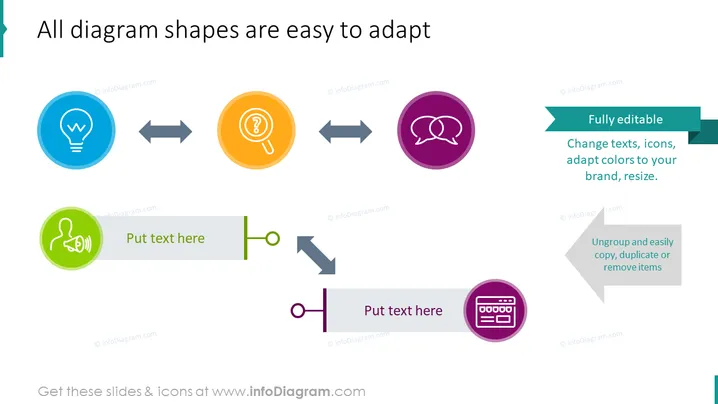
All diagram shapes are easy to adapt
Slide Content
The slide displays the flexibility and customizability of diagram shapes in a presentation. It states that all diagram shapes are easy to adapt, highlighting the ability to fully edit by changing texts, icons, and colors to match a brand, and resize as needed. It also emphasizes the ease of ungrouping, copying, duplicating, and removing items to cater to specific presentation needs.
Graphical Look
- The slide has a clean and modern design with a white background.
- Four colorful circular icons arranged in a horizontal line towards the top of the slide:
- A light bulb in blue signifies an idea or creativity.
- A question mark in orange represents inquiry or curiosity.
- Conversation bubbles in purple suggest communication or discussion.
- A calculator in dark purple indicates calculation or analytics.
- Two horizontal process flow diagrams, one at the bottom left and the other at the bottom right:
- The left diagram includes a green circular icon with a hand symbol and space for text.
- The right diagram has a similar icon with a computer screen and space for text.
- Double-headed horizontal arrows connect the circle icons, implying interconnectivity or process flow.
- Rectangular banners with text populate both ends of the slide:
- The left banner has rounded corners, a dark teal background, and outlines the editability features.
- The right banner is a lighter shade of teal with an arrow pointing left, explaining how to manage the slide elements.
The slide has a balanced aesthetic with a clear focal point on adaptability, using contrasting colors to differentiate elements and guide the viewer's attention through the flow of the process.
Use Cases
- Introducing the features of a software tool designed for creating customizable diagrams.
- Training employees on how to adapt and use company-branded presentation templates.
- Showcasing the benefits of a presentation design service to potential clients.
- Demonstrating the flexibility of a new digital product - or platform with a focus on user experience and customization during a product demo or sales pitch.
How to Edit
How to edit text & colors

How to expand / shorten diagram

How to Replace Icons in infoDiagram PPT


