Reviews
Your graphics add a nice touch to my presentations and I recently used them for one of my all-hands meetings. Your toolbox adds professionalism to my slides. Instead of using standard clipart.
I needed a fresh look at some of my slides. I've tried to find a way to create a paintbrush effect, to underline, accentuate, add some color and the handwritten markers were just the things. Very easy to use, easy to size, change the color. It was an affordable, perfect solution and I'm happy to recommend it.
The crisp, clean look of the graphics, and the fact that it allowed me to easily edit and change the colors to match the template was my main reason for purchasing them.
Description
All shapes are easy to modify
Slide Content
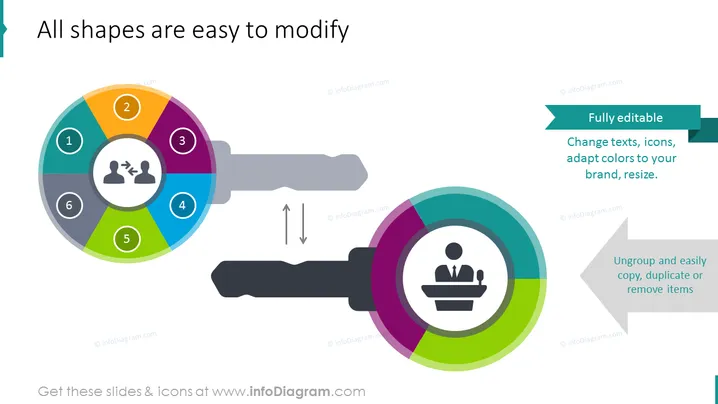
The PowerPoint slide depicts a key and keyhole analogy to represent the customization of presentation elements. Each segment of the key and keyhole features a number and an icon, suggesting different components or steps in a process that can be modified. The adjacent text emphasizes the slide's customizable nature, indicating users can fully edit text, icons, and colors to fit their brand, and elements can be ungrouped for easy manipulation.
Graphical Look
- The slide background is white.
- A large, multicolored key shape dominates the left side, with six numbered circular segments in different colors.
- Each segment contains a unique icon related to business or teamwork.
- A keyhole shape is located to the right, also featuring multiple colors and a central icon of a person at a podium.
- Two arrows are between the key and keyhole, indicating insertion or compatibility.
- There are three text boxes with aquamarine backgrounds and white text explaining features of the slide templates.
- A thin, dark-grey footer line is at the bottom of the slide.
The slide is designed with a modern, flat graphic style, featuring vibrant colors and simple icons to convey information visually. The overall look is clean and businesslike, with graphical elements designed to convey the idea of customizing or fitting pieces together.
Use Cases
- Presenting the steps of a customizable process or service in a business meeting.
- Illustrating the flexibility and adaptability of a product or software to potential clients.
- Training presentations where different modules or sections can be tailored to the audience's needs.
- Marketing presentations to showcase how branding elements can be incorporated into a product or design.
How to Edit
How to edit text & colors

How to expand / shorten diagram

How to Replace Icons in infoDiagram PPT


