Reviews
Your graphics add a nice touch to my presentations and I recently used them for one of my all-hands meetings. Your toolbox adds professionalism to my slides. Instead of using standard clipart.
I needed a fresh look at some of my slides. I've tried to find a way to create a paintbrush effect, to underline, accentuate, add some color and the handwritten markers were just the things. Very easy to use, easy to size, change the color. It was an affordable, perfect solution and I'm happy to recommend it.
The crisp, clean look of the graphics, and the fact that it allowed me to easily edit and change the colors to match the template was my main reason for purchasing them.
Description
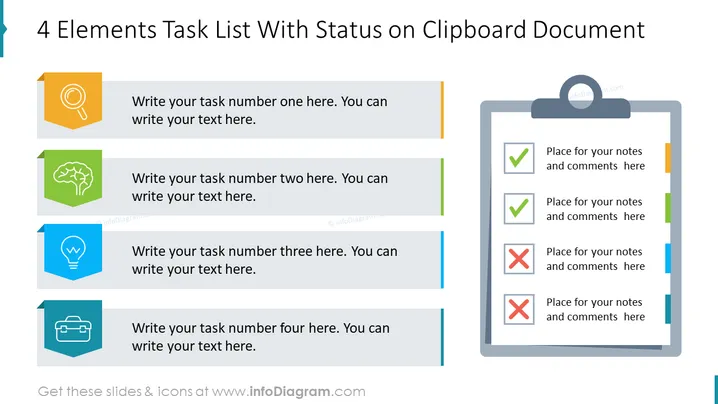
4 Elements Task List With Status on Clipboard Document
Slide Content
The slide is designed to depict a task list with four elements, each with an accompanying status indicator on a clipboard document. The first item symbolized by a magnifying glass indicates a task related to search or analysis. The second with a brain icon suggests a task involving thought or strategy. The third, indicated by a light bulb, implies a task associated with an idea or creativity. The final item, depicted with a briefcase, may denote a task related to business or work assignments. Each element has space for detailed text and is color-coded to track progress or categorization.
Graphical Look
- Four rectangular colored blocks with icons and text spaces are aligned vertically on the left side of the slide.
- Each block contains an icon that corresponds with different tasks or concepts: a magnifying glass, brain, light bulb, and briefcase.
- Next to each icon, there is a placeholder for text explanation, followed by a vertical color-coded line.
- On the right side, there is a graphic of a clipboard with four slots representing tasks and their status.
- The clipboard graphic includes check marks and crosses to denote the completion or incompletion of the tasks.
- Each task slot on the clipboard aligns with the color-coded lines of the corresponding block on the left.
The slide has a clean and organized design, using color-coding and icons to visually distinguish between different tasks and their statuses. Graphical elements are simplified for clarity, and the alignment of the blocks with the clipboard creates an easy-to-understand flow.
Use Cases
- Presenting project milestones and their current status during a team meeting.
- Outlining tasks and deliverables in a project proposal or progress report.
- Tracking and displaying action items during a workshop or training session.
- Providing a visual aid for task delegation and updates in management or coordination meetings.
How to Edit
How to edit text & colors

How to expand / shorten diagram

How to Replace Icons in infoDiagram PPT


