
Reviews
Ihre Grafiken verleihen meinen Präsentationen eine nette Note, und ich habe sie kürzlich für eines meiner All-Hands-Meetings verwendet. Ihre Toolbox verleiht meinen Folien Professionalität, anstatt Standard-Clipart zu verwenden.
Ich brauchte einen neuen Blick auf einige meiner Folien. Ich habe versucht, einen Weg zu finden, einen Pinselschlag-Effekt zu erzielen, um zu unterstreichen, hervorzuheben, Farbe hinzuzufügen, und die handgeschriebenen Markierungen waren genau das Richtige. Sehr einfach zu bedienen, leicht in der Größe zu ändern, die Farbe zu ändern. Es war eine erschwingliche, perfekte Lösung und ich empfehle sie gerne weiter.
Die klare, saubere Optik der Grafiken und die Tatsache, dass ich die Farben leicht bearbeiten und an die Vorlage anpassen konnte, war mein Hauptgrund für den Kauf.
Description
Segment Details Quadrant Matrix Diagram – Top Right
Slide Content
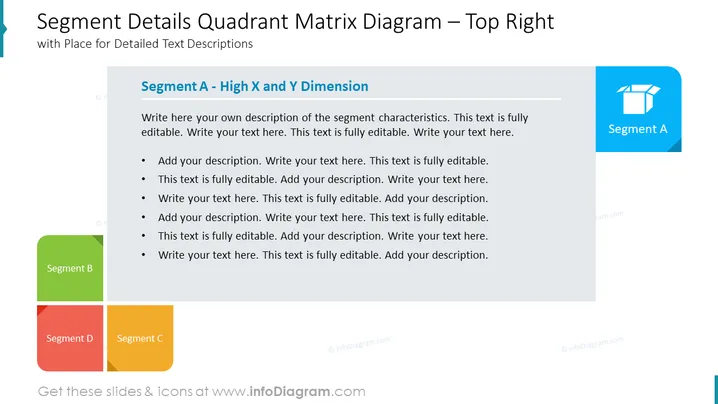
The slide provides an overview of "Segment A - High X and Y Dimension" within a quadrant matrix diagram. The slide contains placeholders for detailed text descriptions enabling users to add their own tailored content. Each bullet point prompts the user to insert text, which suggests customizing the slide to describe specific characteristics or data related to Segment A, which apparently scores high on both the X and Y axes being assessed.
Graphical Look
- The slide background is white with a title in large, bold, dark text at the top.
- There is a colored bar on the left side with a lighter blue shade, giving a visual break from the main content.
- To the left, there are four colored squares representing different segments labeled B, C, and D with respective colors green, yellow, and red. Segment A is indicated in blue.
- The main content area is a large gray rectangle with a smaller blue rectangle in the upper right corner labeled "Segment A".
- Inside the gray rectangle are several lines of placeholder text, each preceded by a bullet point inviting users to add descriptions.
- The overall slide contains a balanced mix of colors with a clear hierarchy of information.
The slide has a professional and clean appearance, using color coding to differentiate between the segments. The layout is structured in a way that allows for easy interpretation of information.
Use Cases
- Presenting an analysis of market segments where each is rated by two dimensions.
- Discussing strategic business units or product categories in portfolio management.
- Mapping out customer segments or user profiles by two selected criteria.
- Delivering a competitive analysis by plotting competitors against key success factors.
How to Edit
How to edit text & colors

How to expand / shorten diagram

How to Replace Icons in infoDiagram PPT


