
Reviews
Your graphics add a nice touch to my presentations and I recently used them for one of my all-hands meetings. Your toolbox adds professionalism to my slides. Instead of using standard clipart.
I needed a fresh look at some of my slides. I've tried to find a way to create a paintbrush effect, to underline, accentuate, add some color and the handwritten markers were just the things. Very easy to use, easy to size, change the color. It was an affordable, perfect solution and I'm happy to recommend it.
The crisp, clean look of the graphics, and the fact that it allowed me to easily edit and change the colors to match the template was my main reason for purchasing them.
Description
Segment Details Quadrant Matrix Diagram – Bottom Left
Slide Content
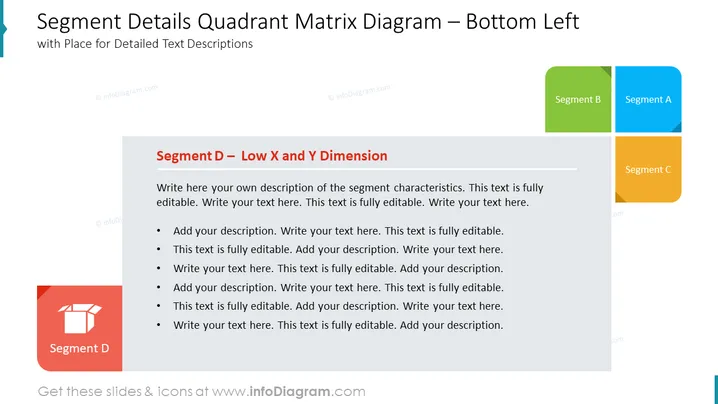
The PowerPoint slide is intended for presenting detailed descriptions of a specific segment, labeled "Segment D – Low X and Y Dimension", within a quadrant matrix. There are placeholders for adding text that describe the characteristics of Segment D. This segment is presumably low on two dimensions represented by the X and Y axes in the matrix. The indication is that the audience can customize the content with their own descriptions, supporting a detailed analysis or discussion of this particular segment.
Graphical Look
- The slide background is white, which gives it a clean and professional look.
- At the top left of the slide, there is a loose-leaf paper-like shape with a blue tab on the left side that provides the main title in black font.
- The title of the slide is prominently displayed at the top in a large, bold font.
- To the right, a quadrant matrix is visible, with colored squares representing different segments (Segment A blue, Segment B green, and Segment C orange) and focusing on the bottom-left segment (Segment D) that is not shown on the matrix but represented below.
- Below the matrix, there is a gray rectangular shape with a red sidebar signifying the detailed area for Segment D.
- Inside the gray rectangle, there is a subheading in red, "Segment D – Low X and Y Dimension", followed by a bullet list with text placeholders in black font for adding descriptions.
- An icon representing Segment D is present in the bottom left of the slide; it’s a square with rounded corners, red in color with a white symbol of an open box.
- The slide has a well-organized layout, with harmonized colors and clearly defined sections for textual and visual content.
The overall look is modern and functional, utilizing a common color scheme to differentiate segments and a clear layout that guides the viewer's attention towards the title and detailed description of Segment D.
Use Cases
- To present a detailed analysis of a particular segment identified in a data-driven strategy meeting.
- In a marketing presentation, to explain the target demographics represented by Segment D.
- During a quarterly business review, to discuss performance or potential of products or services in various market segments.
- In an educational or training setting, to teach about analytical frameworks and how to apply them to real-world business scenarios.
How to Edit
How to edit text & colors

How to expand / shorten diagram

How to Replace Icons in infoDiagram PPT


