
Reviews
Ihre Grafiken verleihen meinen Präsentationen eine nette Note, und ich habe sie kürzlich für eines meiner All-Hands-Meetings verwendet. Ihre Toolbox verleiht meinen Folien Professionalität, anstatt Standard-Clipart zu verwenden.
Ich brauchte einen neuen Blick auf einige meiner Folien. Ich habe versucht, einen Weg zu finden, einen Pinselschlag-Effekt zu erzielen, um zu unterstreichen, hervorzuheben, Farbe hinzuzufügen, und die handgeschriebenen Markierungen waren genau das Richtige. Sehr einfach zu bedienen, leicht in der Größe zu ändern, die Farbe zu ändern. Es war eine erschwingliche, perfekte Lösung und ich empfehle sie gerne weiter.
Die klare, saubere Optik der Grafiken und die Tatsache, dass ich die Farben leicht bearbeiten und an die Vorlage anpassen konnte, war mein Hauptgrund für den Kauf.
Description
33% your text
Slide Content
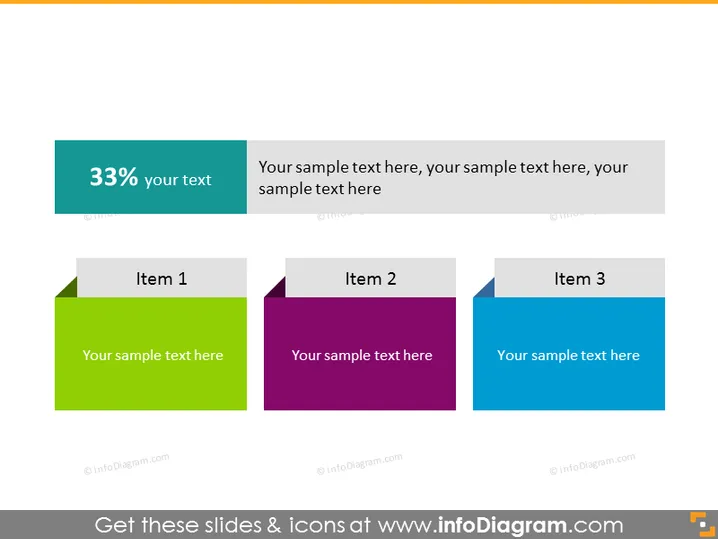
This PowerPoint slide appears to be conveying statistics or progress with a heading that indicates a percentage, "33% your text". It breaks down information or steps into three items, suggesting a sequence or categories. 'Item 1' might refer to the initial part or phase of a process, 'Item 2' might indicate a subsequent stage with a different focus, and 'Item 3' could represent the final segment or an additional aspect central to the overall information being presented.
Graphical Look
- The slide has a clean, modern aesthetic with a minimalist design approach.
- There's a large teal banner along the top with white text displaying "33% your text", indicating a significant figure or milestone.
- Below the banner, aligned horizontally, there are three rectangular shapes with folded corner visuals, which give the impression of labels or tags.
- Each shape has a distinct color: green for 'Item 1', purple for 'Item 2', and blue for 'Item 3'.
- Inside each of these colored rectangles, there is a grey tab with a text placeholder that states "Your sample text here", which suggests these are areas for customizable content.
- The overall layout has a symmetrical balance with equal spacing between the items.
The slide's overall look is clean and organized, with a color-coded system that supports easy distinction between the items. The lack of clutter and simple color palette makes the slide visually appealing and straightforward to follow.
Use Cases
- Showing project progress or status updates in which the large percentage at the top signifies a milestone or completion rate.
- Breaking down components or phases of a business strategy, with each item representing a separate strategic element.
- Presenting statistical data or research findings where each color-coded item stands for a different data point or category.
- Creating an agenda or table of contents slide where each item outlines a section or topic of the presentation.
How to Edit
How to edit text & colors

How to expand / shorten diagram

How to Replace Icons in infoDiagram PPT


