
Reviews
Your graphics add a nice touch to my presentations and I recently used them for one of my all-hands meetings. Your toolbox adds professionalism to my slides. Instead of using standard clipart.
I needed a fresh look at some of my slides. I've tried to find a way to create a paintbrush effect, to underline, accentuate, add some color and the handwritten markers were just the things. Very easy to use, easy to size, change the color. It was an affordable, perfect solution and I'm happy to recommend it.
The crisp, clean look of the graphics, and the fact that it allowed me to easily edit and change the colors to match the template was my main reason for purchasing them.
Description
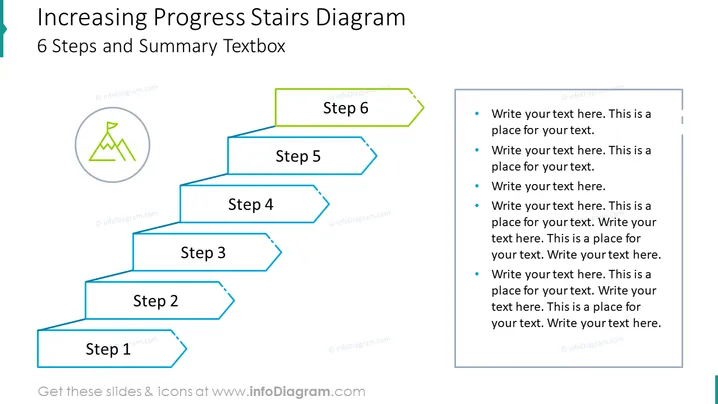
Increasing Progress Stairs Diagram
Slide Content
The slide presents a "6 Steps and Summary Textbox" visualizing progress in the form of ascending stairs, labeled from Step 1 to Step 6, indicating a sequential process or growth stages. Each step has space for a title or brief description, implying that details can be added to elaborate on each stage of the process. A circular icon with a figure climbing is linked to Step 1, representing the start of the progression. To the right, there is a text box with bullet points where additional information, commentary, or details for the steps can be written, allowing for expansion on the concepts presented in each step.
Graphical Look
- The slide background is white.
- The title is in dark blue font color at the top of the slide.
- A stair-step diagram is located on the left side of the slide, consisting of six steps.
- Each step is represented by a 3D rectangle with a blue outline and light blue fill.
- The rectangles are connected by lines, giving the illusion they are steps in a staircase.
- The steps increase in elevation from left to right, symbolizing progression.
- There is a circular icon with a green climber silhouette representing the starting point linked to Step 1.
- To the right is a rectangular text box with rounded corners for adding descriptive text.
- The text box has four bullet points with placeholder text in dark gray color.
- Each step is labeled with a number and the word "Step", followed by a space for further text.
The overall look is clean and professional, with a good contrast of colors that highlights the progression theme of the diagram. The use of 3D shapes for the steps adds depth to the visual representation of growth or stages.
Use Cases
- To portray a step-by-step process in product development, with each step detailing a phase of the lifecycle.
- To outline the stages of a project timeline, with the steps illustrating key milestones and deliverables.
- For tracking the progression of a marketing strategy, with each step representing an advancement in the campaign.
- To illustrate educational or training programs, with each stair indicating a level of competence or a learning stage.
How to Edit
How to edit text & colors

How to expand / shorten diagram

How to Replace Icons in infoDiagram PPT


