

Your graphics add a nice touch to my presentations and I recently used them for one of my all-hands meetings. Your toolbox adds professionalism to my slides. Instead of using standard clipart.
Claude Jones, Director of Engineer, @Walmartlabs, USA

Your graphics add a nice touch to my presentations and I recently used them for one of my all-hands meetings. Your toolbox adds professionalism to my slides. Instead of using standard clipart.
Claude Jones, Director of Engineer, @Walmartlabs, USA
I needed a fresh look at some of my slides. I've tried to find a way to create a paintbrush effect, to underline, accentuate, add some color and the handwritten markers were just the things. Very easy to use, easy to size, change the color. It was an affordable, perfect solution and I'm happy to recommend it.
Anonymous, US
The crisp, clean look of the graphics, and the fact that it allowed me to easily edit and change the colors to match the template was my main reason for purchasing them.
Brandie Jenkins, E-learning Developer, USA
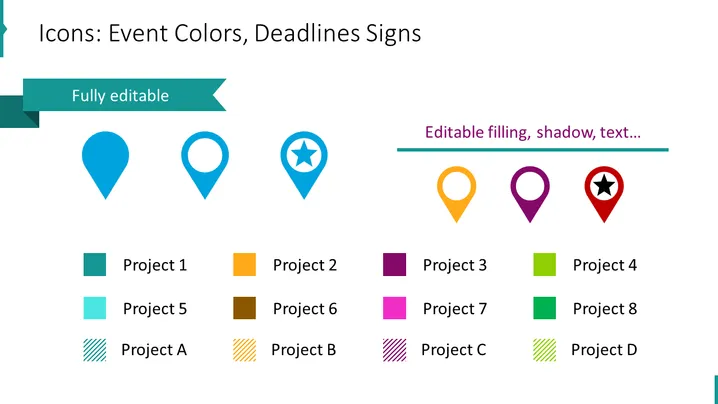
The slide appears to be focused on showcasing icons used for indicating event colors and deadline signs in project management or event planning contexts. A variety of map pin icons are displayed, each with different colors and symbols inside to differentiate between various projects or deadlines. Accompanying each pin icon is a corresponding colored square, labeled with "Project [number]" or "Project [letter]" to facilitate easy visual correlation between the colored icons and project identifiers.
The slide utilizes a simple and professional design, with emphasis placed on color coding and iconography for clear visual communication. The alignment of icons and color squares is meticulously done to ensure a structured and uncluttered representation of information.



