
Reviews
Vos graphiques ajoutent une belle touche à mes présentations et je les ai récemment utilisés pour l'une de mes réunions générales. Votre boîte à outils ajoute du professionnalisme à mes diapositives. Au lieu d'utiliser des cliparts standards.
J'avais besoin d'un nouveau regard sur certaines de mes diapositives. J'ai essayé de trouver un moyen de créer un effet de pinceau, de souligner, d'accentuer, d'ajouter de la couleur et les marqueurs manuscrits étaient exactement ce qu'il fallait. Très facile à utiliser, facile à ajuster la taille, à changer la couleur. C'était une solution abordable et parfaite et je suis heureux de la recommander.
L'aspect net et épuré des graphiques, et le fait qu'il m'ait permis d'éditer et de changer facilement les couleurs pour les adapter au modèle, ont été les principales raisons de mon achat.
Description
Chevron Process Diagram – 3 steps
Slide Content
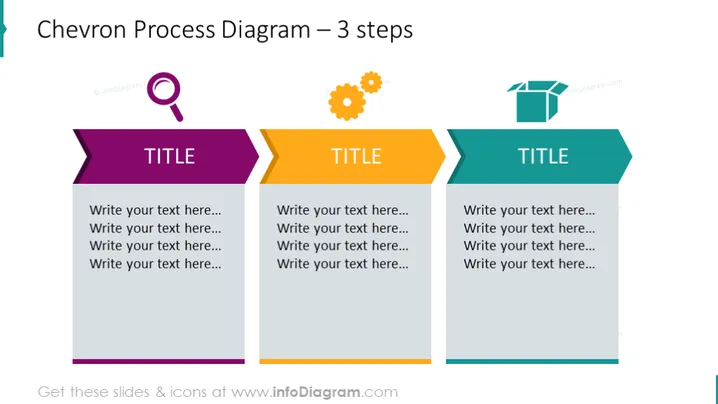
The slide presents a Chevron Process Diagram with 3 steps, designed to showcase a sequence or progress. Each chevron is a step, indicated by a distinctive color – purple, yellow, and blue – accompanied by a TITLE placeholder and multiple lines for text allowing for a description of each phase or topic. The chevron shapes suggest forward movement or progression, making it suitable for depicting processes, timelines, or workflows in a visually engaging manner.
Graphical Look
- The title "Chevron Process Diagram – 3 steps" is in a large, bold font centered at the top of the slide.
- There are three chevron shapes in a horizontal row, each pointing to the right, indicating a progression.
- Each chevron is a different color: the first one is purple, the second one is yellow, and the third one is blue.
- Inside each chevron, there is an uppercase word "TITLE" suggesting a placeholder for the step name or phase.
- Below the "TITLE" within each chevron, are four lines of placeholder text, "Write your text here…"
- To the left side of the purple chevron, there's a magnifying glass icon with a purple circle background.
- Next to the yellow chevron, there's a gear icon with an orange circle background, representing settings or process mechanisms.
- Near the blue chevron, there's an open box icon with a blue circle background that could imply delivery or completion.
The overall look of the slide is clean and professional with a clear visual flow from left to right, using color-coded chevron shapes to differentiate between steps in a process. The icons add a thematic touch to each step, potentially aligning with specific functions or stages.
Use Cases
- Illustrating steps in a business development or project management presentation to clarify the stages of progress.
- Demonstrating phases in a marketing strategy during a corporate meeting, where each step includes key actions and outcomes.
- Explaining a sequential process in a training session, using the chevrons to denote different milestones or learning modules.
- Outlining the agenda for a workshop or seminar, assigning each chevron to a particular topic or time slot.
How to Edit
How to edit text & colors

How to expand / shorten diagram

How to Replace Icons in infoDiagram PPT


