
Reviews
Sus gráficos añaden un toque agradable a mis presentaciones y recientemente los usé para una de mis reuniones generales. Su conjunto de herramientas añade profesionalismo a mis diapositivas. En lugar de usar imágenes prediseñadas estándar.
Necesitaba un aspecto fresco para algunas de mis diapositivas. Había intentado encontrar una forma de crear un efecto de pincel, de subrayar, acentuar, añadir algo de color y los marcadores escritos a mano fueron justo lo que necesitaba. Muy fácil de usar, fácil de ajustar el tamaño, cambiar el color. Fue una solución asequible y perfecta, y estoy feliz de recomendarla.
El aspecto nítido y limpio de los gráficos, y el hecho de que me permitiera editar y cambiar fácilmente los colores para que coincidieran con la plantilla fue mi principal razón para comprarlos.
Description
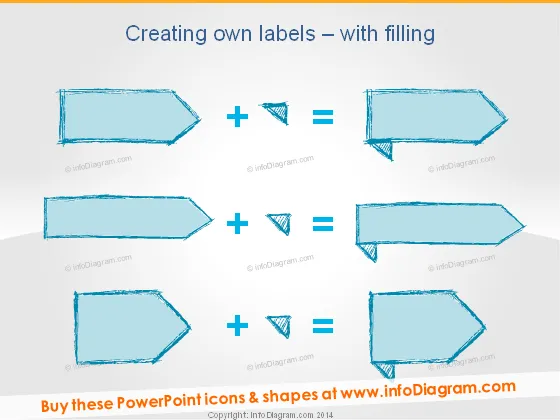
Creating own labels – with filling
Slide Content
The PowerPoint slide titled "Creating own labels – with filling" demonstrates how to design custom labels using shape combinations. Four pairs of shapes are shown: a narrow horizontal rectangle combined with a small triangle produces an arrow-like label; a wider rectangle and triangle create a broader arrow label; an elongated hexagonal shape yields a more intricate label design; and lastly, a skewed rectangle combined with a smaller triangle forms an angular, dynamic label.
Graphical Look
- The background of the slide is a subtle gradient of light blue to white.
- There are four sets of sketches, each depicting a two-step process to create a label shape.
- Crafted with a hand-drawn, sketched effect, the shapes feature a light blue fill with darker outlines.
- Each set consists of a primary shape (rectangle or hexagon) and a small triangle, with the resulting label beside them.
- A plus sign between the original shapes and an equals sign before the resulting label illustrates the combination process.
- The slide utilizes a casual, playful design style with the sketched icons giving it a creative and informal feel.
The overall look of the slide is playful and creative, emphasizing the process of combining simple shapes to create more complex forms. The hand-drawn effect of the icons adds a personal touch to the visuals, making the slide appear less formal.
Use Cases
- Demonstrating the process of graphic design or icon creation during a workshop on visual design.
- Illustrating the concept of combining elements to achieve a new form in a presentation about innovation or product development.
- Engaging audiences in educational or training sessions focused on basic graphic design skills.
- Providing a visual breakdown of a creative process in team meetings discussing marketing materials or branding initiatives.
How to Edit
How to edit text & colors

How to expand / shorten diagram

How to Replace Icons in infoDiagram PPT


