
Reviews
Your graphics add a nice touch to my presentations and I recently used them for one of my all-hands meetings. Your toolbox adds professionalism to my slides. Instead of using standard clipart.
I needed a fresh look at some of my slides. I've tried to find a way to create a paintbrush effect, to underline, accentuate, add some color and the handwritten markers were just the things. Very easy to use, easy to size, change the color. It was an affordable, perfect solution and I'm happy to recommend it.
The crisp, clean look of the graphics, and the fact that it allowed me to easily edit and change the colors to match the template was my main reason for purchasing them.
Description
Actual vs. Maximum Budget Spent
Slide Content
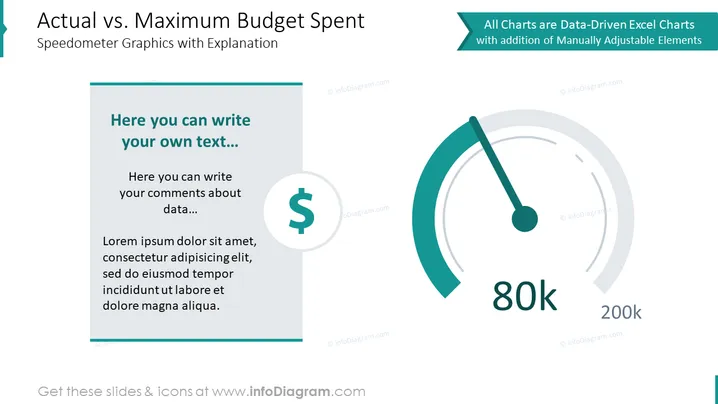
The slide presents a comparison of actual versus maximum budget spent using speedometer graphics for visualization. The left side of the slide has a text box where one can add personalized commentary about the data presented, starting with a prompt "Here you can write your own text...". It's followed by sample text, illustrating where further detail or analysis could be included to elaborate on the budget spending.
Graphical Look
- The slide background is white with a minimalist design.
- A bold, teal-colored header at the top left states "Actual vs. Maximum Budget Spent" in large font with a subtitle "Speedometer Graphics with Explanation".
- On the right side, a graphical representation of a speedometer displays with a needle pointing toward the "80k" mark on a scale that goes up to "200k".
- The speedometer uses shades of grey and teal to denote different sections, possibly indicating ranges of budget spending.
- There is a text box on the left with a light blue background, and it contains placeholder text in a darker blue font.
- In the centre of this text box is a circular icon with a dollar sign, suggesting the topic of budget or finances.
- A light green decorative banner on the top right side mentions that the charts are "Data-Driven Excel Charts with addition of Manually Adjustable Elements".
The slide is clean and professional-looking with a color scheme that uses teal, blue, and grey, which are pleasing to the eye and gives an impression of organized data presentation.
Use Cases
- To present financial performance indicators, such as budget adherence or cost management, during a business meeting.
- In project management updates to show how actual expenditure compares to the budgeted amount.
- For financial analysis presentations, conveying critical data points quickly and effectively to stakeholders.
- During a strategic planning session, illustrating budget utilization against set targets to inform decision-making.
How to Edit
How to edit text & colors

How to expand / shorten diagram

How to Replace Icons in infoDiagram PPT


