Your graphics add a nice touch to my presentations and I recently used them for one of my all-hands meetings. Your toolbox adds professionalism to my slides. Instead of using standard clipart.
Claude Jones, Director of Engineer, @Walmartlabs, USA
Your graphics add a nice touch to my presentations and I recently used them for one of my all-hands meetings. Your toolbox adds professionalism to my slides. Instead of using standard clipart.
Claude Jones, Director of Engineer, @Walmartlabs, USA
I needed a fresh look at some of my slides. I've tried to find a way to create a paintbrush effect, to underline, accentuate, add some color and the handwritten markers were just the things. Very easy to use, easy to size, change the color. It was an affordable, perfect solution and I'm happy to recommend it.
Anonymous, US
The crisp, clean look of the graphics, and the fact that it allowed me to easily edit and change the colors to match the template was my main reason for purchasing them.
Brandie Jenkins, E-learning Developer, USA
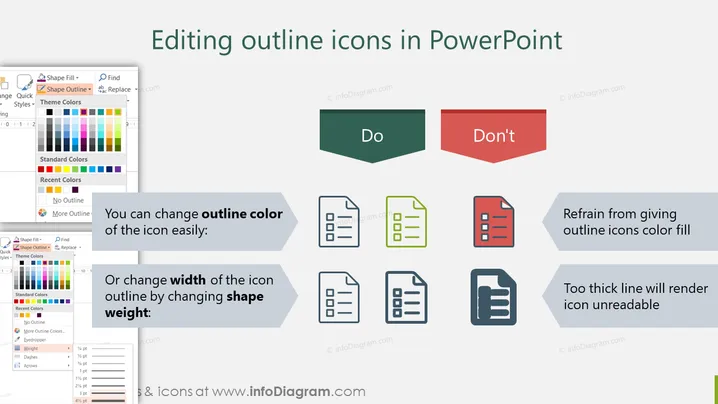
The PowerPoint slide titled "Editing outline icons in PowerPoint" breaks down the dos and don'ts related to customizing outline icons. The "Do" side recommends changing the outline color for better visibility and adjusting the icon outline's width by altering the shape weight to match the presentation's design needs. On the contrary, the "Don't" side advises against filling the icons with color and warns that excessively thick lines can make the icons undecipherable.
The slide has a clear and structured layout, with visual aids such as screenshots and example icons providing a quick understanding of the customization steps. The use of contrasting colors highlights the best practices and common mistakes in editing icons within PowerPoint.