
Your graphics add a nice touch to my presentations and I recently used them for one of my all-hands meetings. Your toolbox adds professionalism to my slides. Instead of using standard clipart.
Claude Jones, Director of Engineer, @Walmartlabs, USA

Your graphics add a nice touch to my presentations and I recently used them for one of my all-hands meetings. Your toolbox adds professionalism to my slides. Instead of using standard clipart.
Claude Jones, Director of Engineer, @Walmartlabs, USA
I needed a fresh look at some of my slides. I've tried to find a way to create a paintbrush effect, to underline, accentuate, add some color and the handwritten markers were just the things. Very easy to use, easy to size, change the color. It was an affordable, perfect solution and I'm happy to recommend it.
Anonymous, US
The crisp, clean look of the graphics, and the fact that it allowed me to easily edit and change the colors to match the template was my main reason for purchasing them.
Brandie Jenkins, E-learning Developer, USA
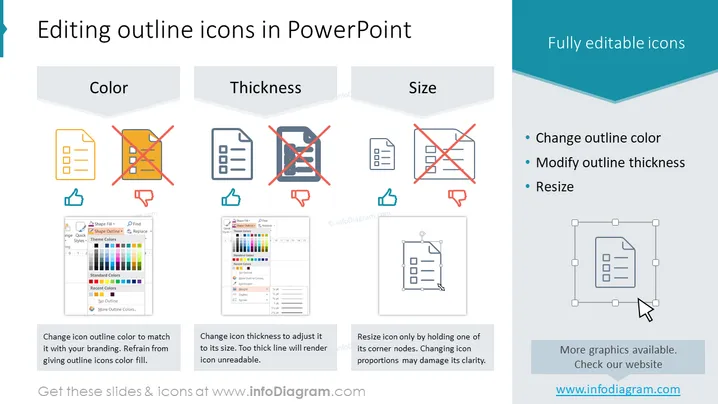
This PowerPoint slide focuses on how to edit outline icons within the application. It provides three key editing aspects: Color, Thickness, and Size, ensuring that the icons can be customized to fit the presenter's needs. "Color" advises to match the icon outline color with branding and cautions against giving icons a color fill. "Thickness" emphasizes adjusting the line weight to ensure readability, indicating that too thick lines can render an icon unreadable. "Size" speaks to resizing icons proportionately by holding one of its corner nodes to maintain clarity and avoid distortion.
The slide utilizes a clean and straightforward design with a professional color scheme. The usage of icons, screenshots, and visual cues like checkboxes and crosses convey the instructions in an easily understandable manner.