
Your graphics add a nice touch to my presentations and I recently used them for one of my all-hands meetings. Your toolbox adds professionalism to my slides. Instead of using standard clipart.
Claude Jones, Director of Engineer, @Walmartlabs, USA

Your graphics add a nice touch to my presentations and I recently used them for one of my all-hands meetings. Your toolbox adds professionalism to my slides. Instead of using standard clipart.
Claude Jones, Director of Engineer, @Walmartlabs, USA
I needed a fresh look at some of my slides. I've tried to find a way to create a paintbrush effect, to underline, accentuate, add some color and the handwritten markers were just the things. Very easy to use, easy to size, change the color. It was an affordable, perfect solution and I'm happy to recommend it.
Anonymous, US
The crisp, clean look of the graphics, and the fact that it allowed me to easily edit and change the colors to match the template was my main reason for purchasing them.
Brandie Jenkins, E-learning Developer, USA
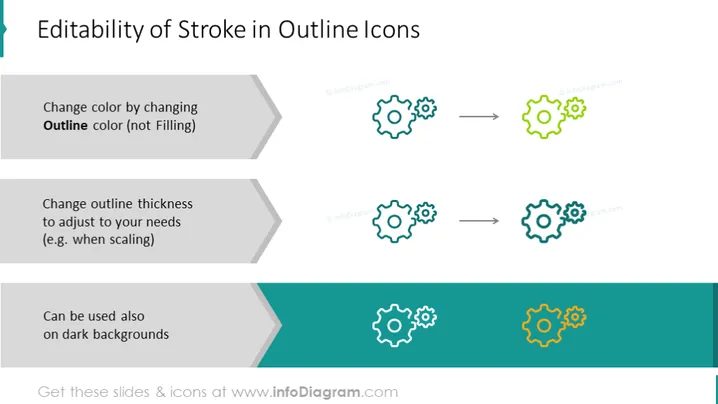
The slide explains three key aspects of editing stroke in outline icons. "Change color by changing Outline color (not Filling)" suggests that the color of an icon can be customized by modifying the outline color rather than the fill. "Change outline thickness to adjust to your needs (e.g., when scaling)" indicates that the thickness of the icon's outline can be altered to suit specific requirements, such as when the icon size changes. "Can be used also on dark backgrounds" implies that these icons can remain effective on various background colors, ensuring flexibility in different design scenarios.
The slide features a clean and contemporary design with visual aids to effectively convey the editability of icons. It uses a simple yet effective visual hierarchy to highlight key points.